 SpriteFuse
Video to Sprite Sheet
Convert an MP4 or WebM clip into a sprite sheet. Select a time range, choose the FPS and frame size, then preview and download the PNG grid with frame timing JSON.
- Free · no sign-in
- Video stays on your device
Already have an animation GIF? Use GIF to Sprite Sheet.
Up to 10 seconds and 100 sampled frames per sheet. Browser-supported codecs only. Source backgrounds are kept.
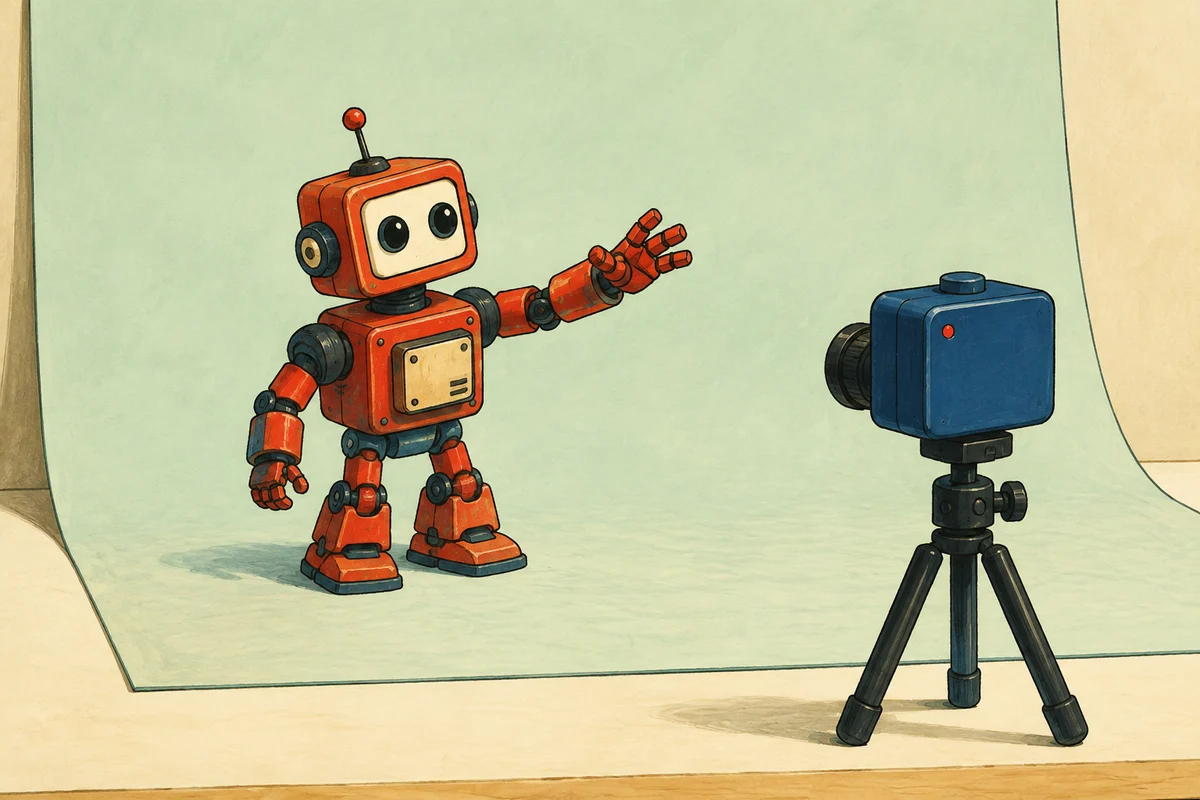
Turn existing animation clips into sprite frames
Use footage that already contains the motion you need. The converter extracts poses from that video; it does not animate a still character or transfer movement to different artwork.
- Character actions
- Extract a walk, attack, or reaction from a rendered animation or an existing character video for a 2D prototype.
- Short visual effects
- Turn a recorded or rendered spell, burst, or smoke effect into a sequence you can inspect and place in your project.
See a video converted to a sprite sheet
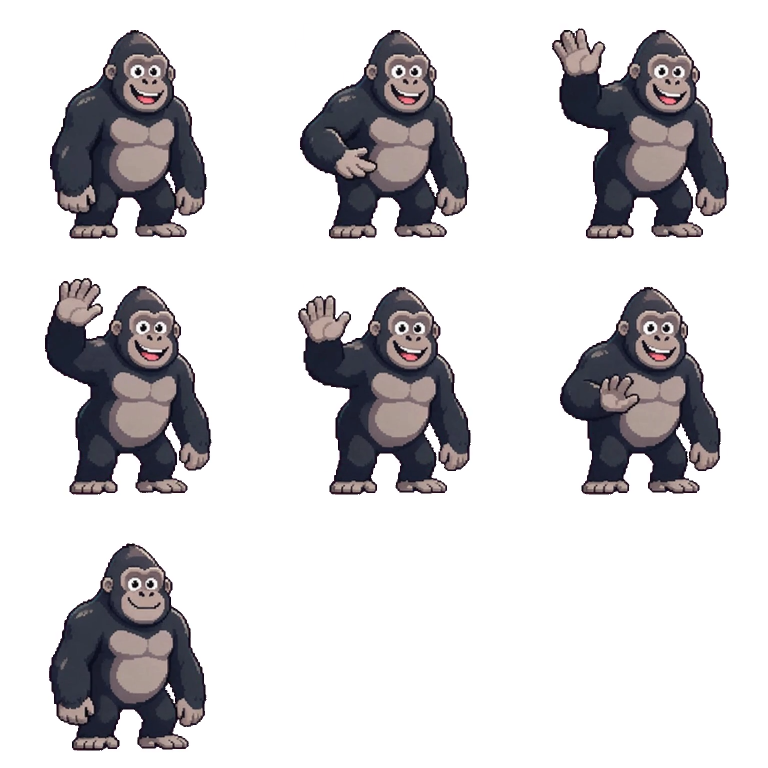
Play the original wave, then compare it with the exported grid. This 1.6-second MP4 produced seven frames at 4 FPS and a 256-pixel frame size. Open the sample below to try the same conversion.
Convert a video to a sprite sheet in three steps
Choose a video
Select an MP4 or WebM file from your device and preview the action you want to keep.
Set the clip and sampling
Enter Start and End, then choose FPS and frame size. Leave out the setup and idle tail; keep enough time for the movement to finish.
Preview and download
Create the sheet, inspect its grid, and download the PNG and JSON. Use Adjust settings to try another export.
Compare frame detail and sheet size
A higher FPS keeps more stages of a movement and increases the sheet size. Compare these actual exports of the same 1.6-second knight clip, both using 256-pixel frames and Auto layout.
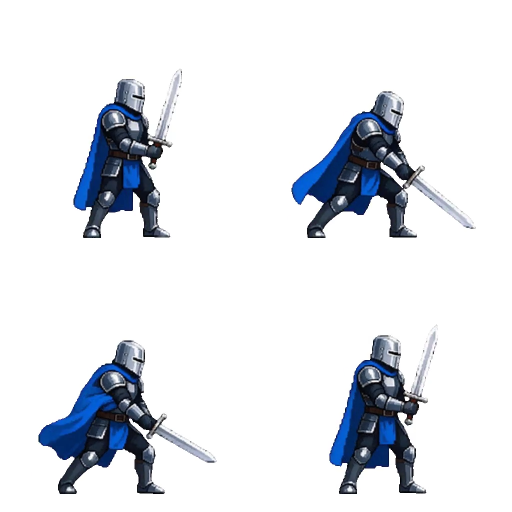
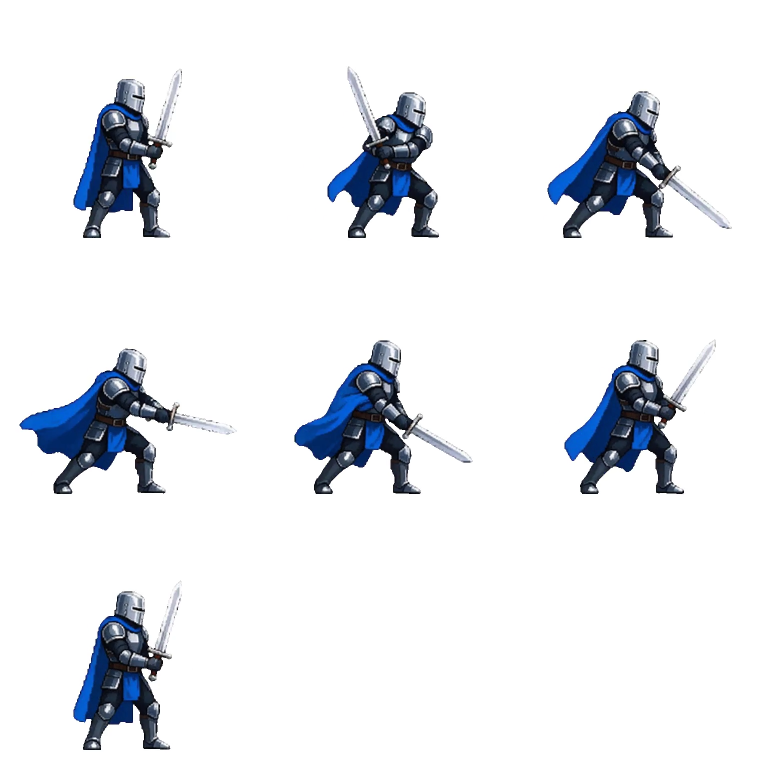
Start with the default 6 FPS and inspect your result. Raise it if an important gesture is missing; lower it if neighboring cells look the same. The 2 and 4 FPS examples illustrate the tradeoff, not a recommended rate for every animation. Sampling above the source frame rate can repeat frames; it cannot add new motion.
Open the comparison source MP4 →Choose a frame size for your project
The 128, 256, and 512 px options set each frame’s longest edge, preserve its aspect ratio, and never upscale the source. Smaller frames reduce the sheet’s dimensions but can lose detail. Columns change the arrangement, not the resolution of each pose.
Download a PNG sheet with frame JSON
- PNG sprite sheet
- All sampled poses in equal-sized cells, ordered left to right and top to bottom. Slice the image using the frame width and height shown in the result.
- Frame timing JSON
- Frame count, cell rectangles, requested source times, and display durations for each pose. Use it for custom importers or as a reference while setting up your animation; it is not a native Unity or Godot import file.
In this spell export, each cell is 256 × 256 pixels. Index 4 is the fifth frame at x = 256, y = 256. The highlighted cell lets you compare the image directly with its JSON entry.
Inspect this example’s JSON →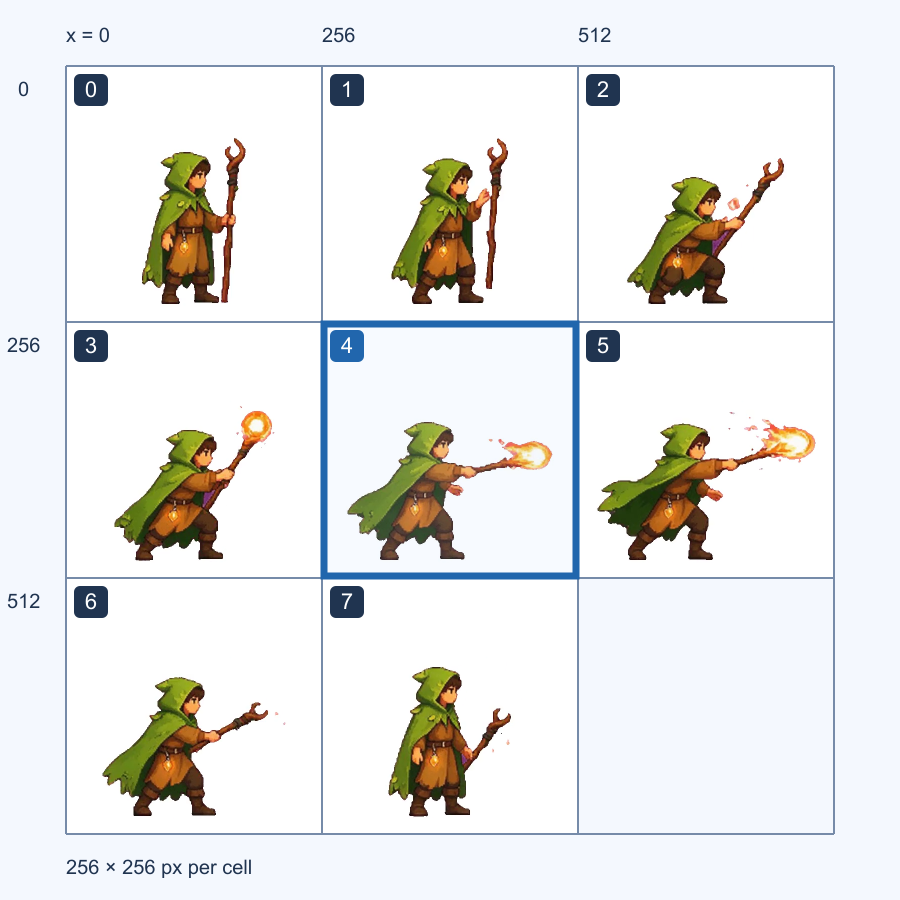
Check frame count, timing, and loop playback after import
Skip unused cells. This spell sheet contains eight frames in a 3 × 3 grid. Leave the ninth cell out of your animation so it does not flash blank at the end.
Keep the final interval. In the 1.6-second knight example at 4 FPS, the last frame lasts 100 ms rather than 250 ms. Use the JSON durations to preserve that shorter ending; fixed-rate playback holds it longer. Sampling starts at Start and stops before End.
Inspect playback in your editor. Check detail at the intended display size and compare the last pose with the first before looping. A one-off attack may need to play once; conversion cannot create a transition between unmatched poses.
Video conversion limits and troubleshooting
Why won’t my MP4 or WebM file open?
The file extension does not identify its video codec. Your browser must be able to decode the video inside it; try re-exporting as H.264 MP4 if another encoding fails. The file must be no larger than 50 MB, have a readable duration, and stay within 4096 pixels on either side and 8.8 million pixels per source frame. MOV and OGG files are not accepted here. Audio is ignored.
Why does my selection exceed the frame limit?
The tool allows up to 10 seconds and 100 sampled frames per sheet. Both limits apply: 10 seconds at 6 FPS gives 60 frames, but at 12 FPS it would need 120. Reduce the FPS or shorten the selected range. For a longer recording, convert separate sections into separate sheets.
Why is my sprite sheet too large to export?
The finished image cannot exceed 4096 pixels on either side or 16 million pixels in total. A narrow column layout can create an overly tall image even below the 100-frame limit. Try Auto layout first. If it still exceeds the limit, choose a smaller frame size or extract fewer frames.
Are the JSON source timestamps frame-accurate?
They record requested sampling times in seconds, not verified timestamps of the original encoded frames. The browser seeks to each requested time and supplies a decoded frame. Codec behavior and browser timing precision can affect which frame is returned. Use a frame-accurate video editor when an exact source-frame match is required.
Can I download separate frame images or an animated GIF?
This tool exports one PNG sheet and one JSON file. It does not export individual PNG frames, a ZIP archive, or an animated GIF. To get separate images, slice the downloaded grid in an image editor using the recorded cell dimensions.
Can I recover a result after closing the tab?
Download both files before closing or resetting the tool. Source videos and conversion results are not saved to a SpriteFuse project, so there is no account history to restore them from. To recreate a result, select the original video again and use the same range, FPS, frame size, and layout.