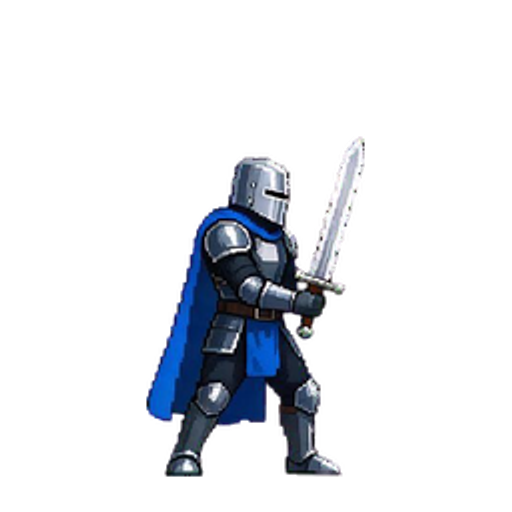
Knight Sword Attack
A blue-caped knight swings a two-handed sword.
 SpriteFuse
You can see the dodge, spell, or reaction in your head. Your game still has a static placeholder—and drawing it frame by frame can take days. Describe that move, preview it, adjust it in plain language, and export transparent animation files.
Free to try
Need a character first? Create a sprite character.
See four sprite animations made from simple prompts. Pick one to try with your own character.
A blue-caped knight swings a two-handed sword.
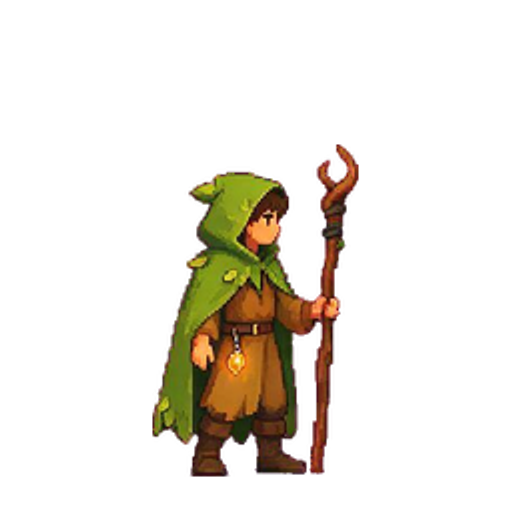
A forest mage charges and casts a fire spell.
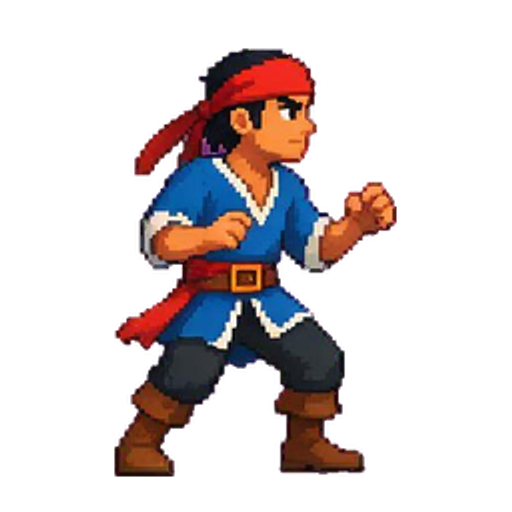
A pirate takes a heavy hit and recovers.
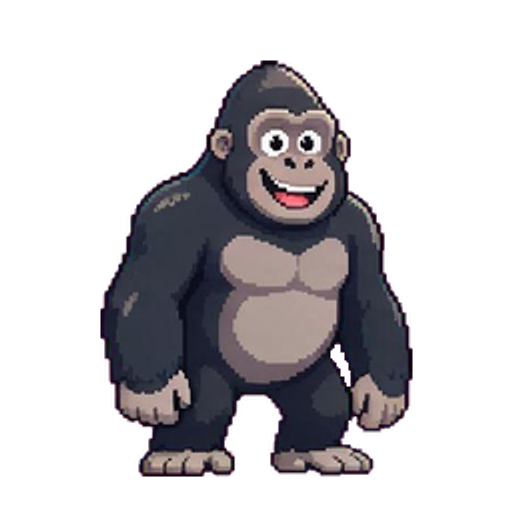
A friendly gorilla gives a one-handed wave.
SpriteFuse is an AI Sprite Generator for indie developers and small 2D game teams. Keep one character available as reference context, describe the exact action instead of choosing a preset, and adjust the completed animation in plain language.
Keep the defining colors, proportions, outfit, and equipment available as reference context for later animations.
Ask for the dodge, cast, reaction, or sequence you have in mind instead of choosing from a fixed preset list.
Update the current animation with one clear instruction, using the previous completed result instead of starting from zero.
Describe the character and action, preview and adjust the result, then export transparent sprite files you can keep editing.
Describe the character and action. Add a PNG, JPEG, or WebP reference if you already have one.
Play the animation, inspect its frames, adjust timing, and describe any visual change in plain language.
Download transparent frames, a sprite sheet, GIF, metadata, and engine guidance.
Each completed animation includes transparent character art, clear frame timing, and practical files for reviewing the motion, editing individual frames, and setting the result up in your game engine.
Open the individual PNG frames in Aseprite, or use the included sprite sheet, GIF, metadata, and setup guidance to continue in Godot or Unity.
Want to turn a still image into a drawing or craft pattern? Use the pixel art grid generator to make a numbered chart or download printable blank grid paper. For a yarn project, try the crochet pattern generator for a colorwork chart with a printable key.
Drawing your first sprite? Follow our step-by-step pixel art tutorial to draw a 16×16 mushroom and save a crisp PNG.
One packed PNG you can slice and animate in your game engine.
Ordered transparent frames you can retouch, replace, or import your own way.
A GIF for checking the motion quickly or sharing it with your team.
Frame order, timing, canvas, baseline, and pivot details for consistent playback and easier engine setup.
Clear setup notes for bringing the animation into Godot or Unity.
An AI Sprite Generator is a sprite creator that turns text or a reference image into 2D character art. With SpriteFuse, you can also describe the move your game needs, preview it, adjust it, and export transparent animation files.
Yes. A reference image is optional. You can upload a PNG, JPEG, or WebP when you already have a character concept, or start with text when the character only exists as an idea.
No. Those can be useful examples, but the input is open-ended. You can describe the exact action your game needs, including its starting pose, main action, impact, and recovery.
Name the character’s defining visual traits, then describe the starting pose, main action, and recovery you imagine. You do not need to choose a frame count, FPS, or sprite-sheet layout.
No. Frame count and timing are planned from the requested action. The main workflow keeps sheet layout and pivot details out of your way, then includes the relevant technical information in the export.
A completed export contains a transparent sprite sheet, individual transparent frames, a GIF preview, animation metadata, and a README with Godot and Unity guidance.
Yes. The transparent frame PNGs and sprite sheet can continue through your normal art workflow, including manual editing in Aseprite. The export does not include a native .aseprite file.
No. The neutral checkerboard Asset Canvas is used only to preview transparent art and motion. It is not sent into generation and is not included in exported files.
Not necessarily. Generated assets are intended for prototyping, inspection, adjustment, and continued editing. Final production polish still depends on your art direction, character complexity, and the quality bar of your game.
When you use the AI Sprite Generator, your character description and optional reference image are used to create the requested asset. Analytics events exclude prompts, uploaded images, account details, and payment data. See our Privacy and Cookie policies for more.
Use the AI Sprite Generator to describe the character and the action you want to see. Start with text, or upload a reference image to keep working from an existing character.
Create an animation