
Best when your importer only needs equal cells. It keeps the sheet compact without making you count columns.
 SpriteFuse
FREE GIF FRAME PACKER
GIF to Sprite Sheet
This GIF to sprite sheet converter gives you a transparent PNG and timing JSON. Leave the grid on Auto unless your project needs a fixed row length.
- No account required
- Transparent PNG output
- Frame timing included
REAL CONVERSION PROOF
See One GIF Become a Sprite Sheet
Eight 160-pixel frames become one 480-pixel sheet. The JSON keeps each 200ms delay, so the image and timing are easy to verify.

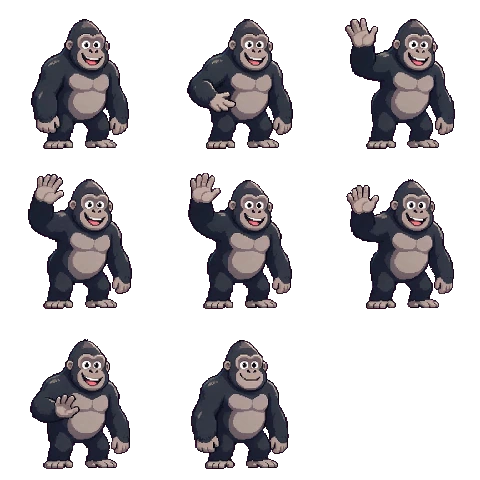
Compare the motion with the packed frames, then open the metadata if you want to confirm the exact order and timing.
CHOOSE A GRID
Choose How Many Frames Go on Each Row
Auto makes a compact sheet and works for most imports. Choose a fixed row length only when your project already expects one.
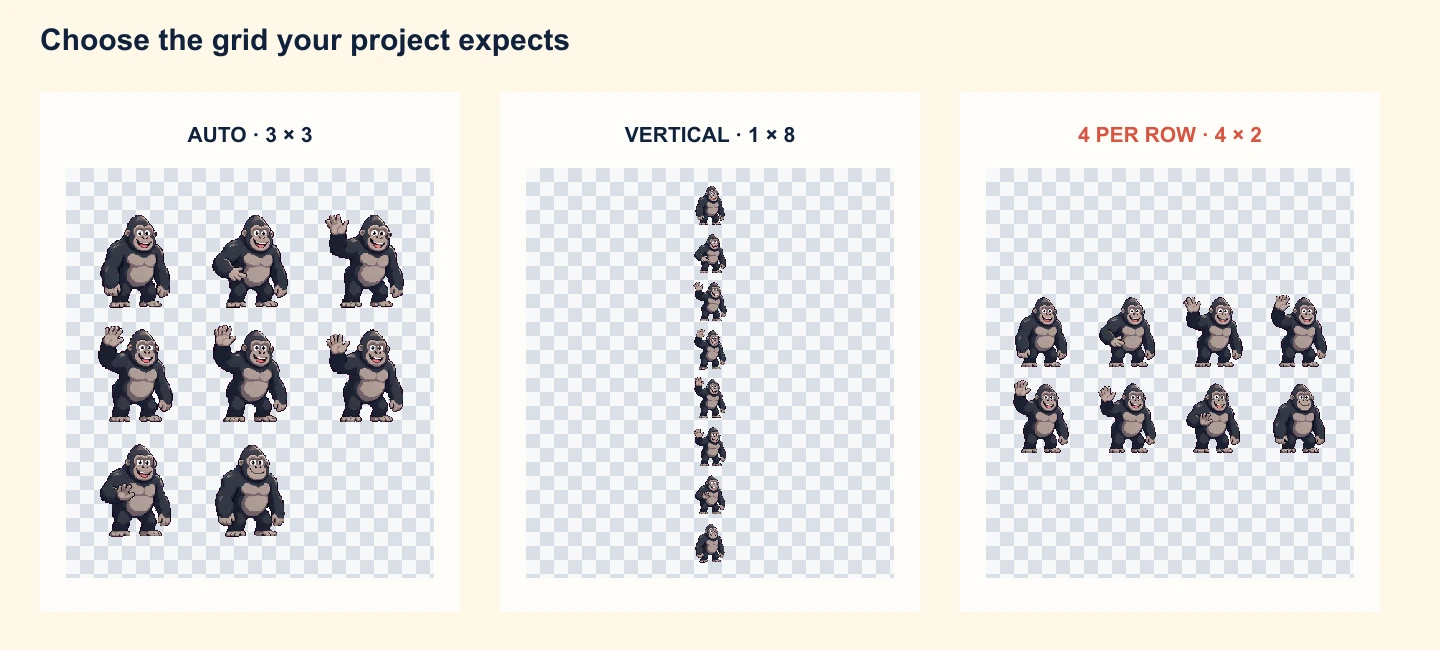
Useful when a shader, UI component, or existing asset folder expects one frame beneath the next.
Pick the row length your project already uses, then confirm the final grid in the result panel.
YOUR DOWNLOAD
Frames and Timing
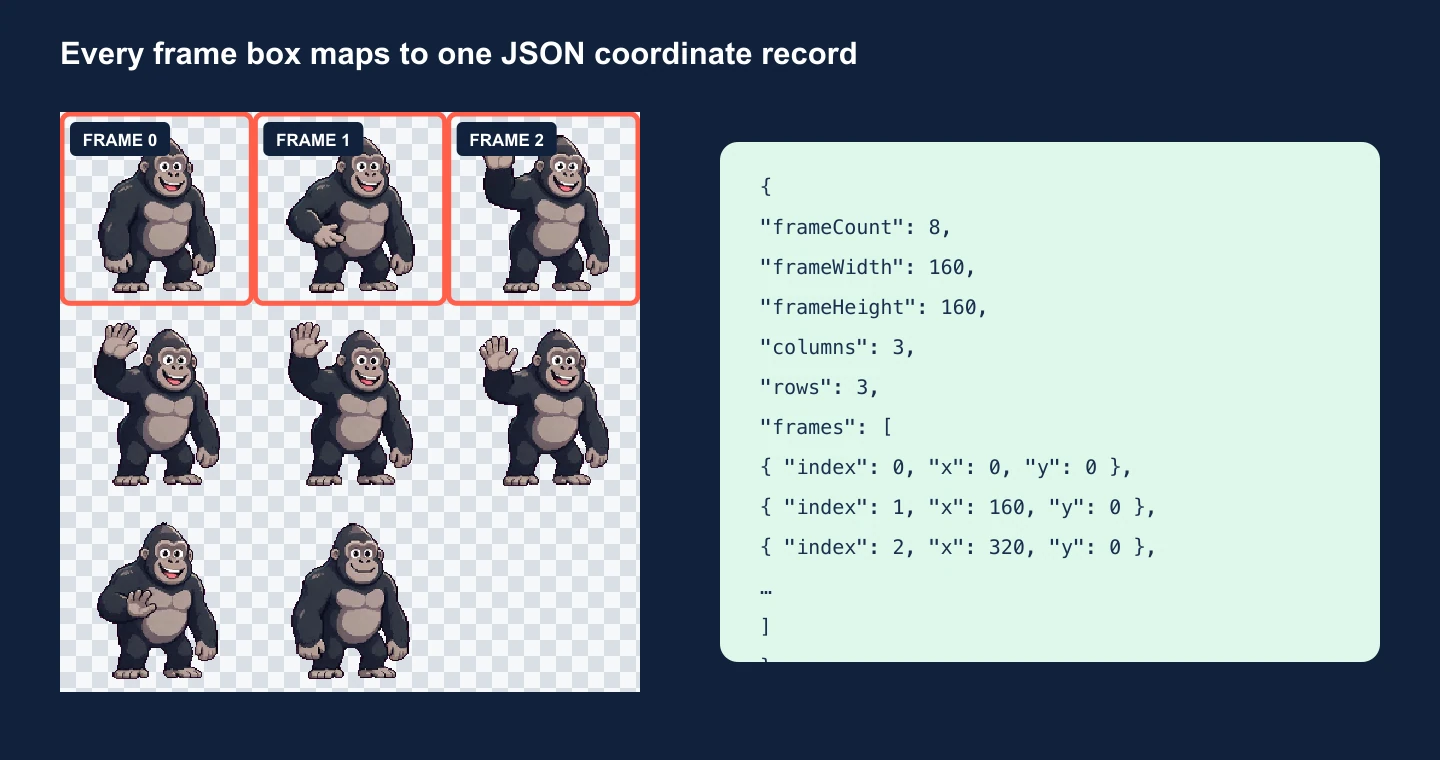
Use the PNG when your editor can slice a regular grid. Keep the JSON when code needs frame positions or the original pauses between poses.
- PNG
- All frames in one transparent image.
- JSON
- Each frame's position and display time.
CHECK THE RESULT
Play It Once Before You Import It
Give the preview one pass now. It is faster than diagnosing the same problem after the sheet reaches your engine.
- Follow the action from first frame to last.Look for a missing pose or a sudden jump that was already hidden in the GIF.
- Watch the loop seam.If the last frame does not return naturally to the first, trim or repair the source animation before converting again.
- Check the transparent areas.The checkerboard should surround the subject. A solid halo or box belongs to the original GIF and will also appear in the PNG.
- Read the dimensions.Frame size and sheet size should match the values you plan to enter in your importer or animation code.
USE THE FILES
Add the Animation to Your Project
The download uses plain PNG and JSON, so it can move into the tools you already use.
Unity, Godot, and sprite editors
Slice the PNG using the recorded frame width and height. Frames run left to right, then continue on the next row.
Keep the original rhythm
Use durationMs when some poses pause longer than others. If your engine needs one FPS, preview a few rates before choosing one.
CSS and canvas
Size the viewport to one frame and move the image through the JSON coordinates. Use its timing array when the delays vary.
IF THE IMPORT LOOKS WRONG
Three Things to Check
Open only the note that matches what you see. Most first-import problems come from layout, playback settings, or a later image edit.
The texture is too tall or too wide
Grid shape changes texture dimensions, not frame size. A vertical strip can hit an engine's height limit quickly. Convert again with Auto or more frames per row, then update the sheet dimensions in your importer.
The animation plays at the wrong speed
A PNG cannot carry time. If every frame is running at one FPS, compare that schedule with delaysMs ordurationMs in the JSON. Use per-frame durations when possible; otherwise, preview a few fixed rates and choose the closest match.
You edited or rearranged the sheet
The supplied coordinates describe the exported PNG exactly. Repainting inside a cell is safe, but cropping, resizing, or moving frames is not. Update the coordinates after those changes, or slice a new uniform grid in your editor.
START WITH THE RIGHT GIF
Conversion Keeps What Is Already There
This tool rearranges frames; it does not redraw them. It will not remove a colored background, crop empty space, sharpen a small source, or invent the in-between poses missing from a rough loop. Those qualities pass straight into the sprite sheet.
Use the cleanest original GIF you can find, preferably at the frame size you actually need. If the subject drifts around a large canvas or the loop starts with a long blank frame, fix that source first. The next conversion will then produce cells you can use without hand-editing every frame.
Before You Upload
Upload up to 4 MB or 100 frames, with each frame no larger than 1024 × 1024. Your GIF is not saved to an account or project.
COMMON QUESTIONS
GIF to Sprite Sheet FAQ
Does the tool include every GIF frame?
Yes. Every displayed frame stays in playback order. The sheet begins at the top left, runs across each row, and then continues on the row below, so the sequence remains predictable in an editor or in code.
Will the sprite sheet keep transparency?
Yes. Transparent areas in the source remain transparent in the PNG. If the GIF already has a solid background, colored fringe, or opaque box around the subject, conversion will keep that too rather than trying to remove it.
What is included in the GIF to sprite sheet JSON?
It includes the complete sheet size, individual frame size, row and column count, source loop information, and one record per frame with its x/y position and duration in milliseconds. It is plain JSON, so you can read or adapt it without a SpriteFuse SDK.
How many frames should I put on each row?
Use Auto when you simply need a compact grid. Choose 1 for a vertical strip, or select a fixed row length when your importer, shader, CSS component, or existing asset convention expects a particular shape.
Is my GIF saved by SpriteFuse?
No. The GIF is handled temporarily to create the conversion response. It is not added to an account, saved as a SpriteFuse project, or placed in your generation history, and this page does not require you to sign in.
What file limits apply?
A GIF can be up to 4 MB and contain up to 100 frames. Each frame can be no larger than 1024 × 1024 pixels. These limits keep the conversion fast enough for a public browser tool and prevent unusually large sheets from exhausting memory.
Can I convert a static GIF?
No. The converter expects an animated GIF with at least two frames. For one still image, there is nothing to pack into an animation grid; use the original PNG or convert the image format separately instead.
TRY YOUR GIF
Choose an animated GIFMake a Sheet You Can Actually Use
Choose the animation, leave the grid on Auto, and let the preview tell you whether anything needs changing.