 SpriteFuseMake a chart
Crochet Pattern Generator
Turn a picture you love into a counted colorwork chart.
Choose your grid, simplify the colors, and take it to your next project.
Free downloads. No account or watermark.
Your images stay in this browser.
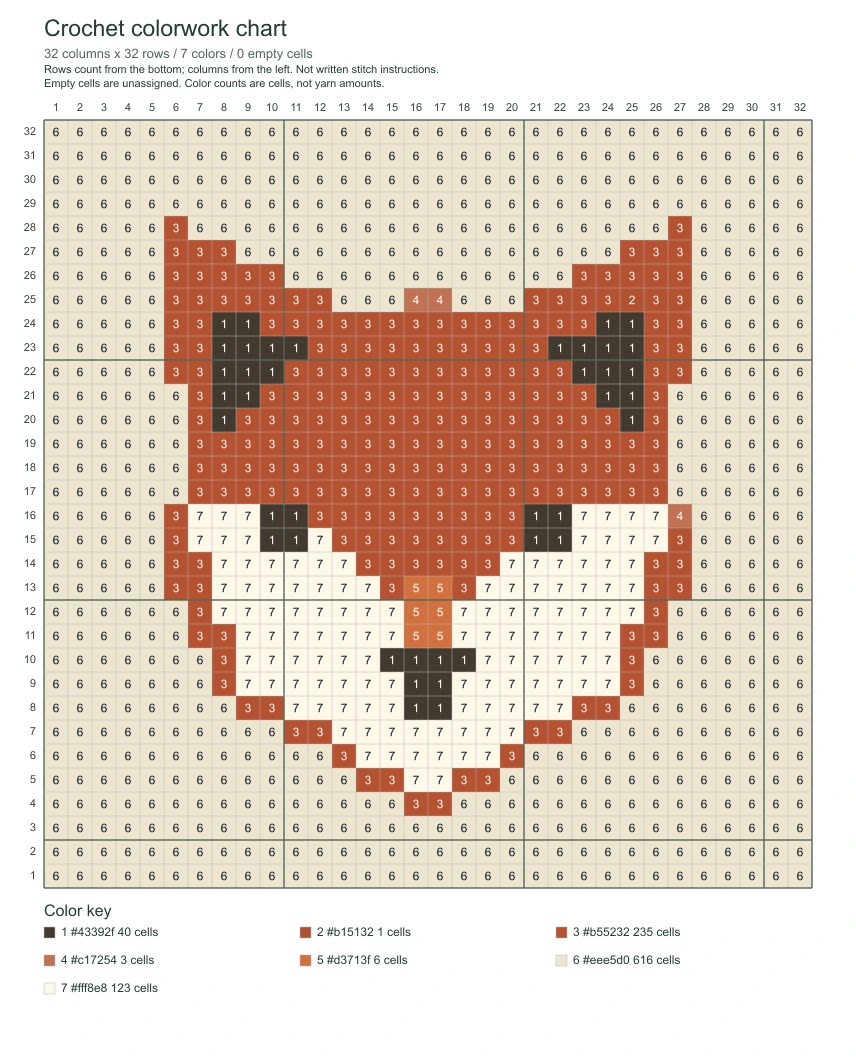 EXAMPLE PATTERN · LOAD IT TO MAKE IT YOURS
Use this crochet pattern generator for tapestry crochet and flat picture panels. You choose the stitch technique; the output is a colorwork chart, not a complete written crochet pattern.
A small motif.
Every color counted.
This fox starts as a simple illustration. The crochet pattern generator turns it into a 32 × 32 grid with a numbered color key. Load the same source to try a different size.
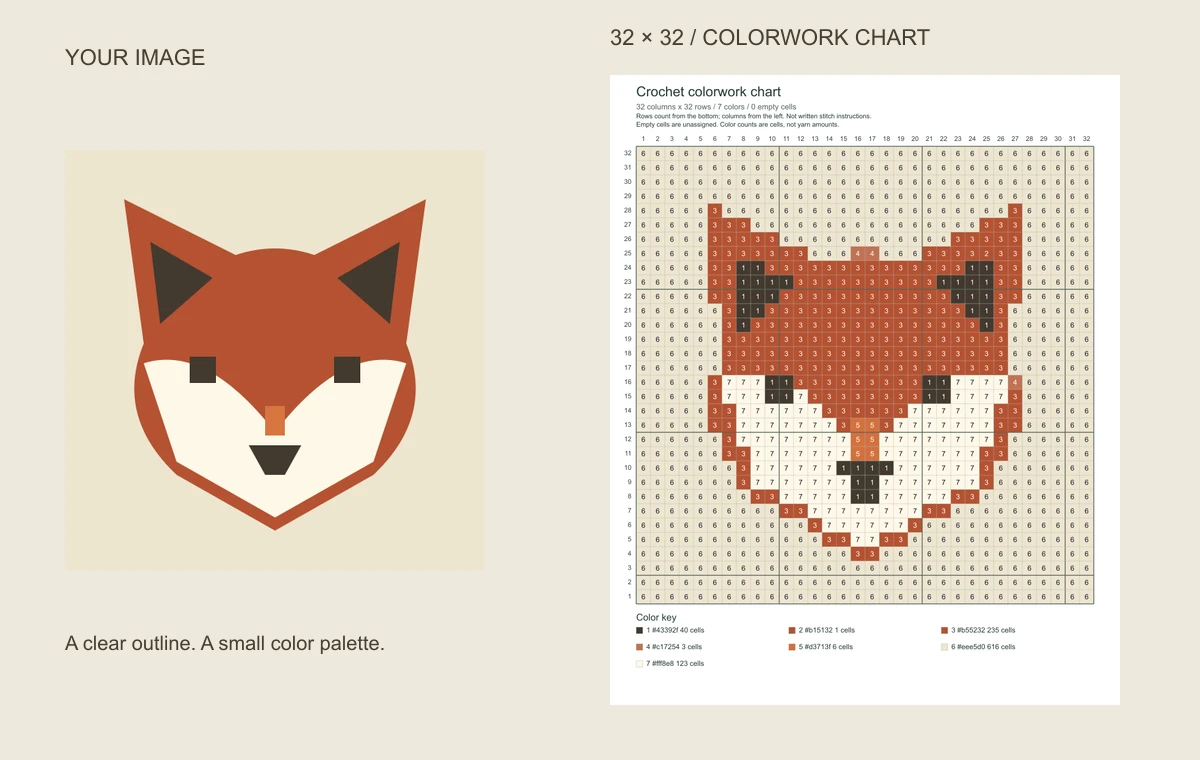
A strong outline and a plain background give a small chart room to breathe. Tiny eyes, lettering and fine fur can disappear when a photo becomes just a few dozen cells across.
Try this imageMore cells keep detail.
Fewer colors keep it manageable.
Two choices shape your project in the crochet pattern generator: grid width controls picture detail, while the color limit controls how many shades you may need to work with. Change one setting at a time.
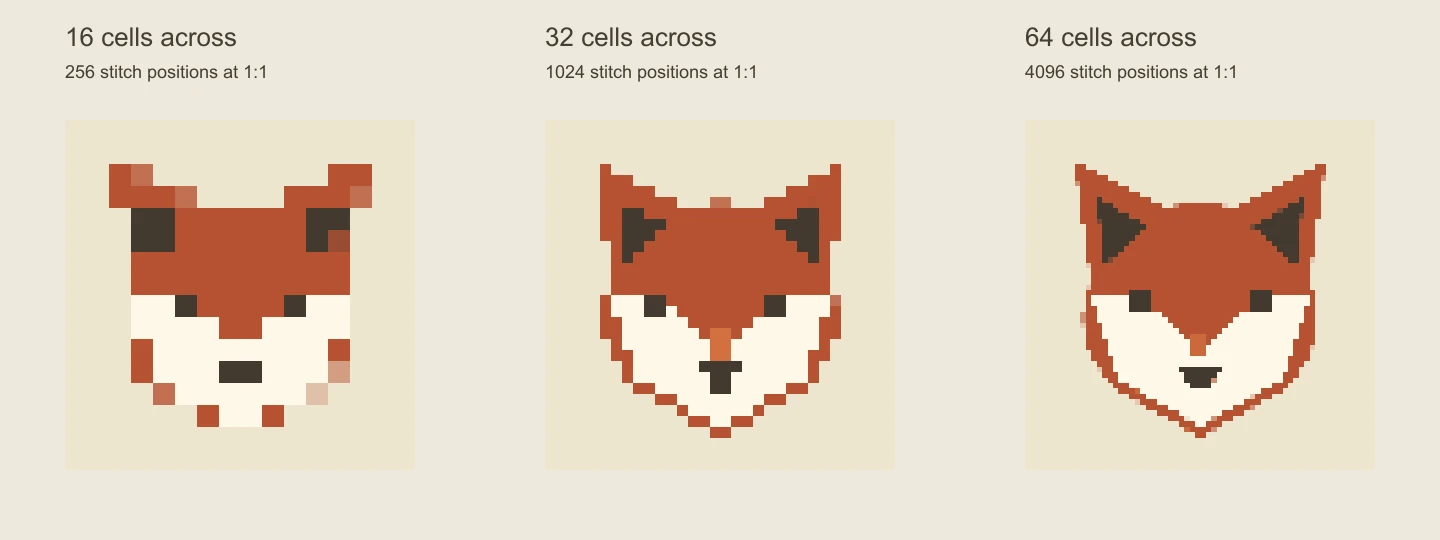
Pick a stitch budget
At one cell per stitch, 32 × 32 means 1,024 stitch positions. Doubling both dimensions makes four times as many positions. Start with 32 across, check the smallest important feature, and increase only if the extra work is worthwhile.
Choose colors you can tell apart
Try an 8-color limit for bold motifs, then compare 16 if important shading disappears. The tool supports up to 32 colors, but similar-looking shades may add changes without helping the finished picture. The limit is a maximum, not a promised palette size.
How do I estimate the finished size?
Make a swatch using your chosen stitch, yarn and hook. Divide chart columns by stitches per inch for width, and chart rows by rows per inch for height. For example, 32 columns at 4 stitches per inch gives 8 inches across; 32 rows at 5 rows per inch gives 6.4 inches high. Square cells on screen do not guarantee square stitches in fabric. The crochet pattern generator preserves the image’s proportions and does not apply gauge correction.
A crochet grid you can check, row by row
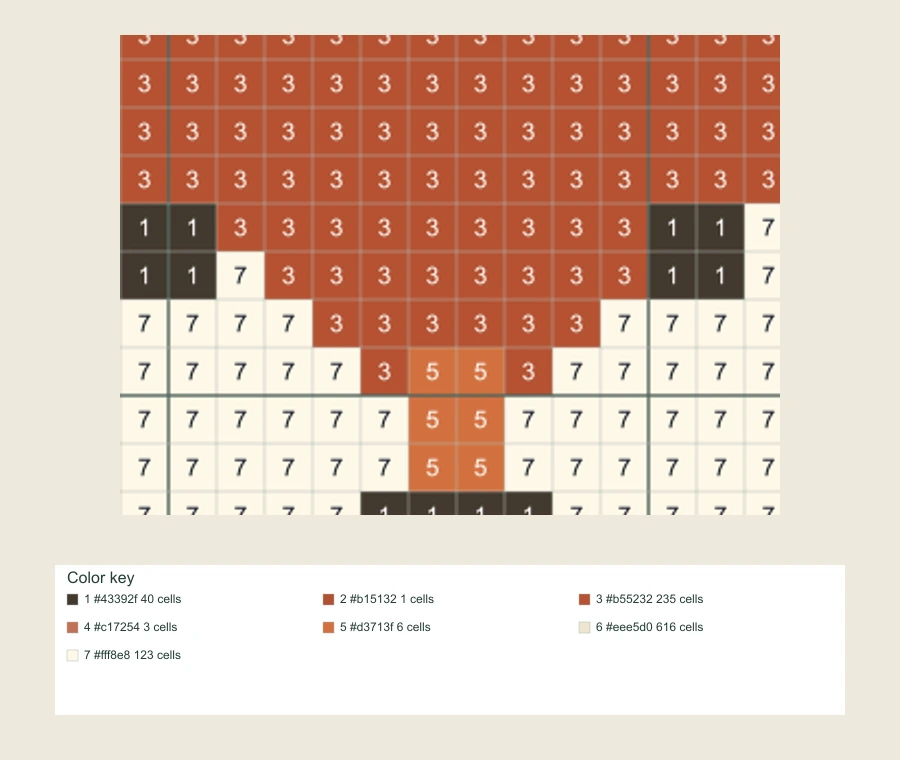
The crochet pattern generator labels row 1 at the bottom and column 1 on the left. The numbers inside cells identify colors, so a “3” means color 3 from the key—not three stitches.
For a flat one-cell-per-stitch project, use the chart’s width as stitch positions and its height as rows. Your stitch pattern determines foundation chains, turning chains and whether you read successive rows in opposite directions. The chart coordinates stay fixed.
Match yarn by eye against the swatches. HEX codes describe screen colors; they are not brand yarn numbers. Cell totals help compare color coverage, but they cannot tell you how many skeins to buy.
How to use the crochet pattern generator
1. Prepare the picture
Crop close to the subject in your usual image editor. Choose a clear silhouette or a well-lit photo with an uncluttered background, then upload the PNG, JPG or WebP.
2. Check the grid
Adjust width and maximum colors. Zoom in to inspect eyes, edges and isolated color changes. If a detail cannot be read at chart size, simplify the source or try a wider grid.
3. Take it to your project
Download your chart, choose matching yarn and test a small swatch before committing to a larger panel. Keep your technique’s stitch instructions beside the color chart.
Your crochet chart,
ready to print or zoom
Take your design out of the crochet pattern generator with its color key attached. Downloads include the current dimensions, color numbers, HEX values and cell counts, so the chart still makes sense after you close the tool.
Download the sample PDF- PNG chart
- Open the full chart on a tablet or computer and zoom into dense areas. Grid lines and coordinates remain in the saved image.
- A4 or US Letter PDF
- A single-page reference with the chart and legend. If cell numbers would print too small, choose fewer cells or turn off color numbers. Multi-page tiling is not included; paper scale does not set your fabric size.
- Image only
- A small PNG without the chart furniture: one pixel for each cell. Use this version for touch-ups in an editor, then bring it back for a fresh chart.
Before you pick up the hook
Can I use this for C2C, filet crochet or amigurumi?
The output is a rectangular color chart. You may adapt its colors to another technique if you already know how, but the generator does not calculate C2C diagonal rows, filet open and filled blocks, increases, shaping or amigurumi construction. Choose a technique-specific pattern for those instructions.
What happens to a transparent background?
Pixels below 50% opacity become empty cells and are left out of the color counts. Other translucent pixels are flattened onto white. An empty cell is an unassigned position, not an instruction to skip a stitch. For a solid rectangular panel, add your intended background color in an image editor before importing.
Can I correct just a few squares?
The crochet pattern generator has no cell-painting editor. Download Image only, edit that small PNG in a pixel editor, then upload it again. Keep its dimensions unchanged and use Original colors when the revised image contains no more than 32 colors.
Why does my file fail to open?
Use a PNG, JPG or WebP under 10 MB, with no more than 8192 pixels on either side and 16 million pixels in total. HEIC, SVG and animated GIF are not supported inputs. Export a still PNG or JPG from your image editor, then try that file.
Can I save a project and return to it later?
Your crochet pattern generator settings reset when you leave; there is no account library to reopen. Keep the chart and the image-only PNG on your device. For hand sketching or other crafts, the pixel art grid tool also offers blank printable grids.
Open the pixel art grid tool