Turn your character idea into a transparent 2D game sprite.
CHARACTER IDEAS
Meet your next game character
A helpful robot, an explorer, or someone behind the village counter. Start with a role that belongs in your game, then give it a look of its own.
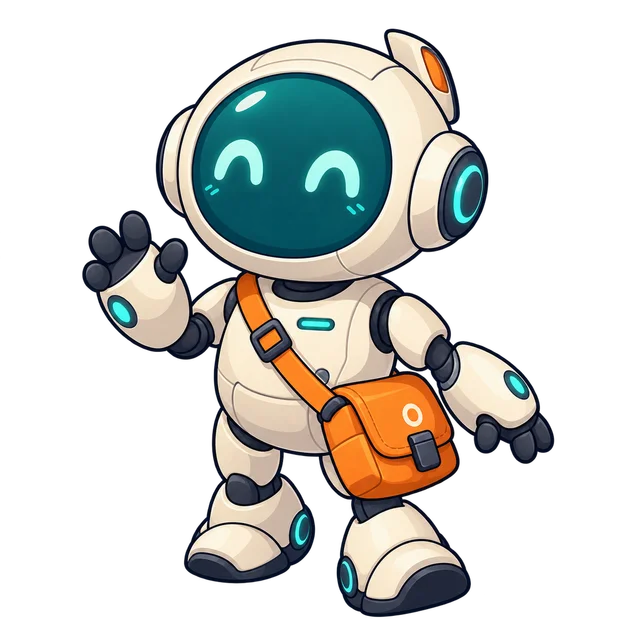
A little service robot
A rounded body, a bright face screen, and one useful accessory.
Read the description
A small cream-colored service robot with a round teal face screen, short limbs, and an orange shoulder bag. Full body, three-quarter view, clean 2D game art.
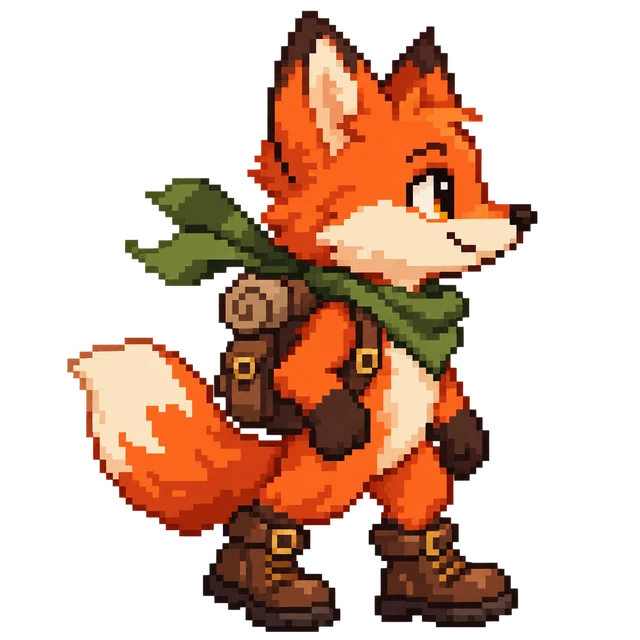
A fox ready to explore
An animal character with an outfit that suggests its next adventure.
Read the description
An orange fox explorer with a green scarf, a small backpack, and sturdy brown boots. Full body, side view, readable pixel-art shapes.
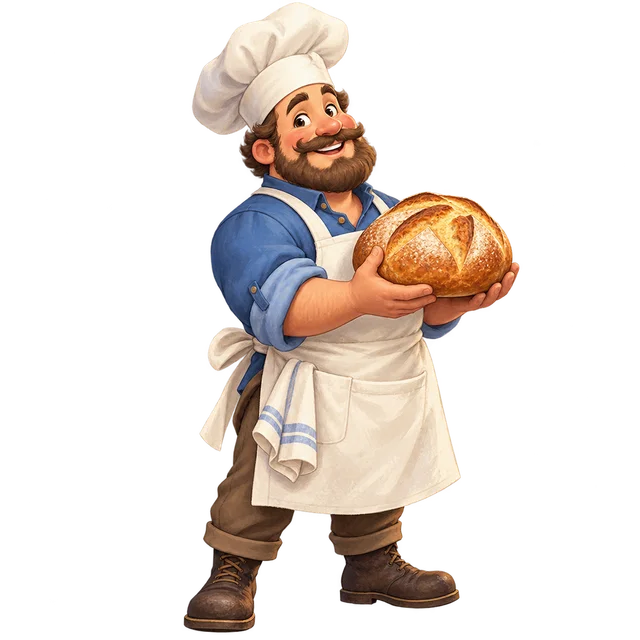
A familiar face in town
A village character whose clothing and prop make the role clear.
Read the description
A cheerful village baker wearing a white apron, a blue shirt, and a tall chef hat, holding a round loaf of bread. Full body, three-quarter view, colorful 2D game art.
DOWNLOAD & IMPORT
Take your character into your game
Download a transparent PNG from the sprite character generator. Keep its original size or choose a square export from 16 to 2048 px. Resizing preserves proportions; it does not add new detail.
A PNG at the size you need
Choose 32, 64, 128, 256, or 512 px, or enter a custom size after generation. Check the smaller image against your scene: fine details can disappear when a character is scaled down.
Godot
Drop the PNG into your project, add a Sprite2D node, and assign the image to its Texture. For pixel art, set Texture Filter to Nearest to keep edges crisp.
Add the PNG to Assets. Set Texture Type to Sprite (2D and UI), choose Sprite Mode: Single, and apply. Drag it into your scene; use Point filtering for pixel art.
Pick the main shapes and colors, then add a reference if you have one. Leave the movement for later.
02
Review the first look
Create the character and check its outfit, proportions, and equipment. View the result at the size you expect to use in your game.
03
Keep it or continue
Download the PNG, or choose “Animate this character” to open its saved project and work on the first action.
WORKFLOW
One character. Its next move.
The sprite character generator saves your character in a project that you can continue into animation. The next request can focus on a wave, a walk, or a reaction instead of starting again with an empty canvas.
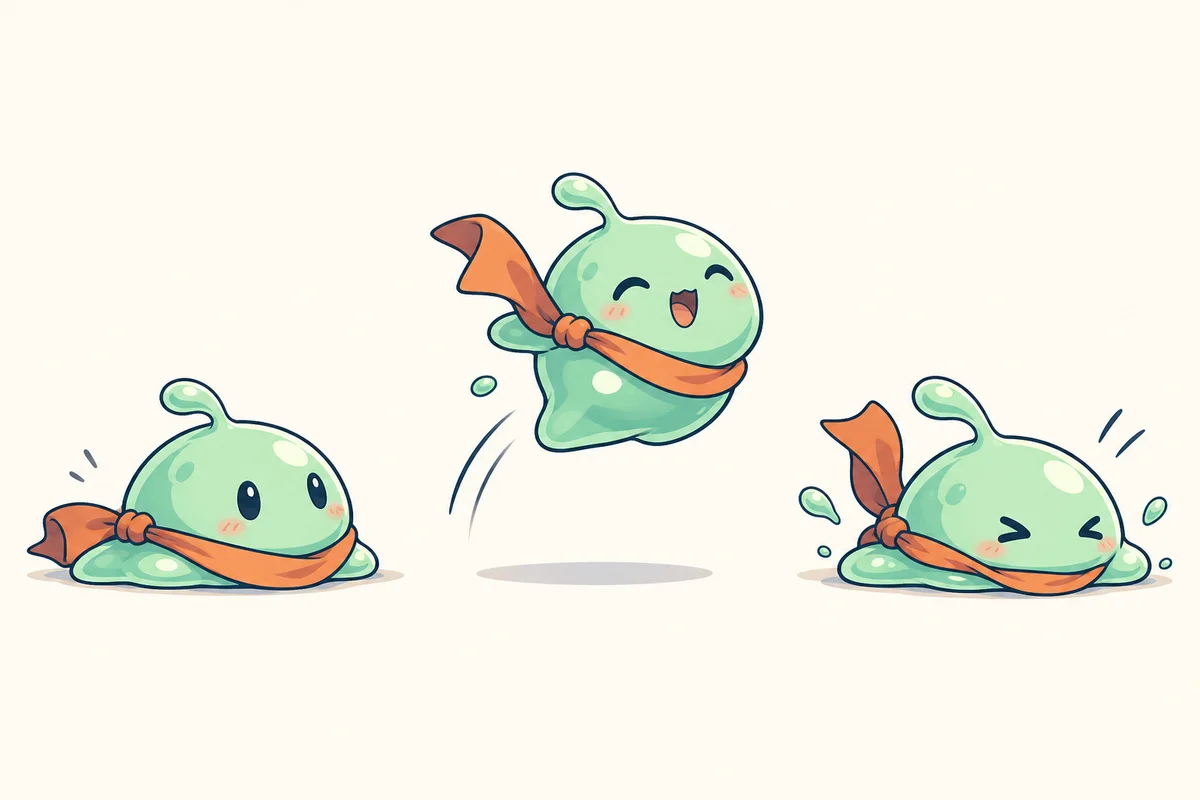
Explore a first move: rest, jump, land.
A saved character gives later actions a visual reference. Review each animation for changes in the face, outfit, or equipment, and check that the movement reads clearly. A reference helps guide the result; it does not guarantee identical details in every new frame.
After creating an action, export its transparent frames, sprite sheet, GIF preview, and timing information. Already know the character and the move? The AI sprite sheet generator is a direct starting point. For directional walks and combat, use the RPG sprite sheet generator. Explore the broader SpriteFuse animation workflow for previewing and refining your results.
FAQ
Sprite character generator questions
Can I use the characters in a commercial game?
Commercial use of images from the sprite character generator requires payment. Free generations are for personal, non-commercial evaluation. Check the pricing and terms before using a character in a commercial project.
Is this a character sprite maker with preset body parts?
The sprite character generator works from your description and optional reference image. It does not assemble a character from a fixed library of hair, clothing, and weapon layers. If you need an exact LPC part combination, use a compatible layered character editor. Here, describe the appearance you want and review the generated result.
What kind of reference image works best?
Use a clear full-body view where the outfit and equipment are easy to see. A crowded scene or a partly hidden character gives less useful detail. The tool accepts one PNG, JPEG, or WebP image up to 2.5 MB. Use artwork you have permission to upload. A reference guides a new result; it does not lock every pixel in place.
Will it create every animation and direction at once?
No. Start with the character, then request the individual actions you need. A walk, attack, or hurt reaction is a separate animation request. Do not assume a character result includes four or eight directions, a rig, or a complete movement set. Check each new action before adding it to your game.
Can this AI sprite maker replace pixel-by-pixel editing?
A sprite character generator gives you a starting design; precise palette cleanup and individual pixel changes may still need an image editor. Check the silhouette at your intended display size and inspect small details before using the result. Describing a visual change creates a new generated revision rather than directly painting pixels.
What if I already have a sprite sheet or an animation?
You can keep that existing work. Use the sprite sheet cutter to split a regular PNG or WebP grid into separate frames. Use GIF to Sprite Sheet if your starting file is an animated GIF. These conversion tools solve file preparation tasks without asking you to generate a new character.