ASEPRITE
Import and refine
File → Import Sprite Sheet. Set the sprite size to 256 × 256, then touch up individual frames.
 SpriteFuse
Use this AI sprite sheet generator to turn one character and one action into a transparent sprite sheet. Start from text or a reference image, see the full motion in order, and improve it without rebuilding the character.
Try it free. Start with text or upload a character.
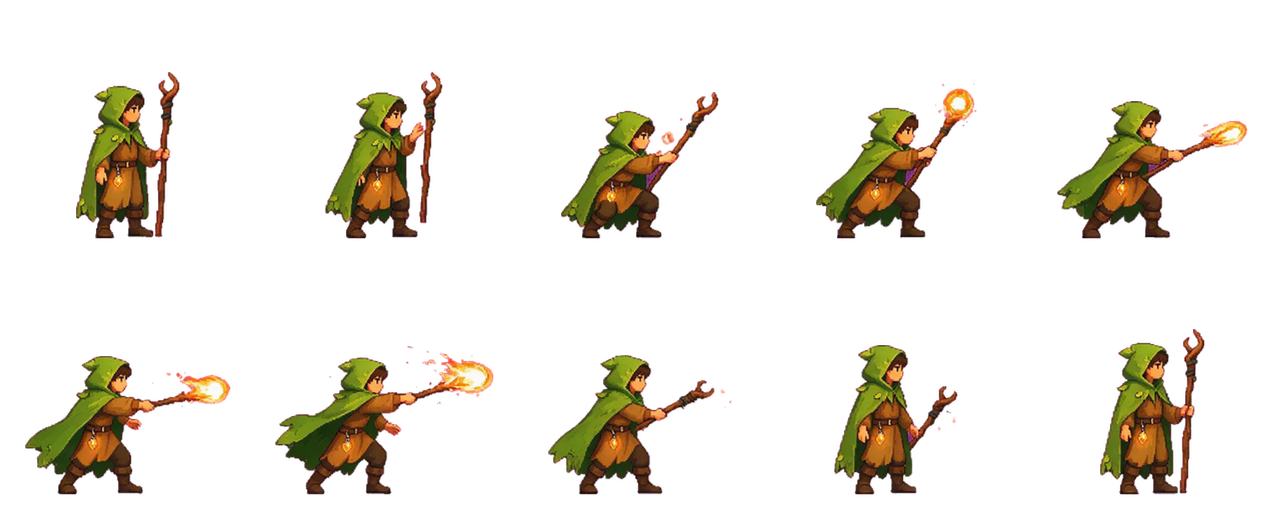
Review the pose, buildup, action, and recovery in one sequence before you download. This real SpriteFuse result was generated from the prompt shown here.
A forest mage in a green hood plants her feet, charges a fire spell, casts it forward, then returns to a ready stance.
Describe a new character, or upload a reference image to keep an existing design recognizable.
Say where the motion starts, what the character does, and how the action ends.
Download the transparent sheet, or keep editing the same character to improve the motion.
If the action feels too fast, too weak, or unclear, ask for a longer wind-up, a stronger effect, or a different ending pose. SpriteFuse keeps the same character in place so you can improve the motion instead of recreating it.
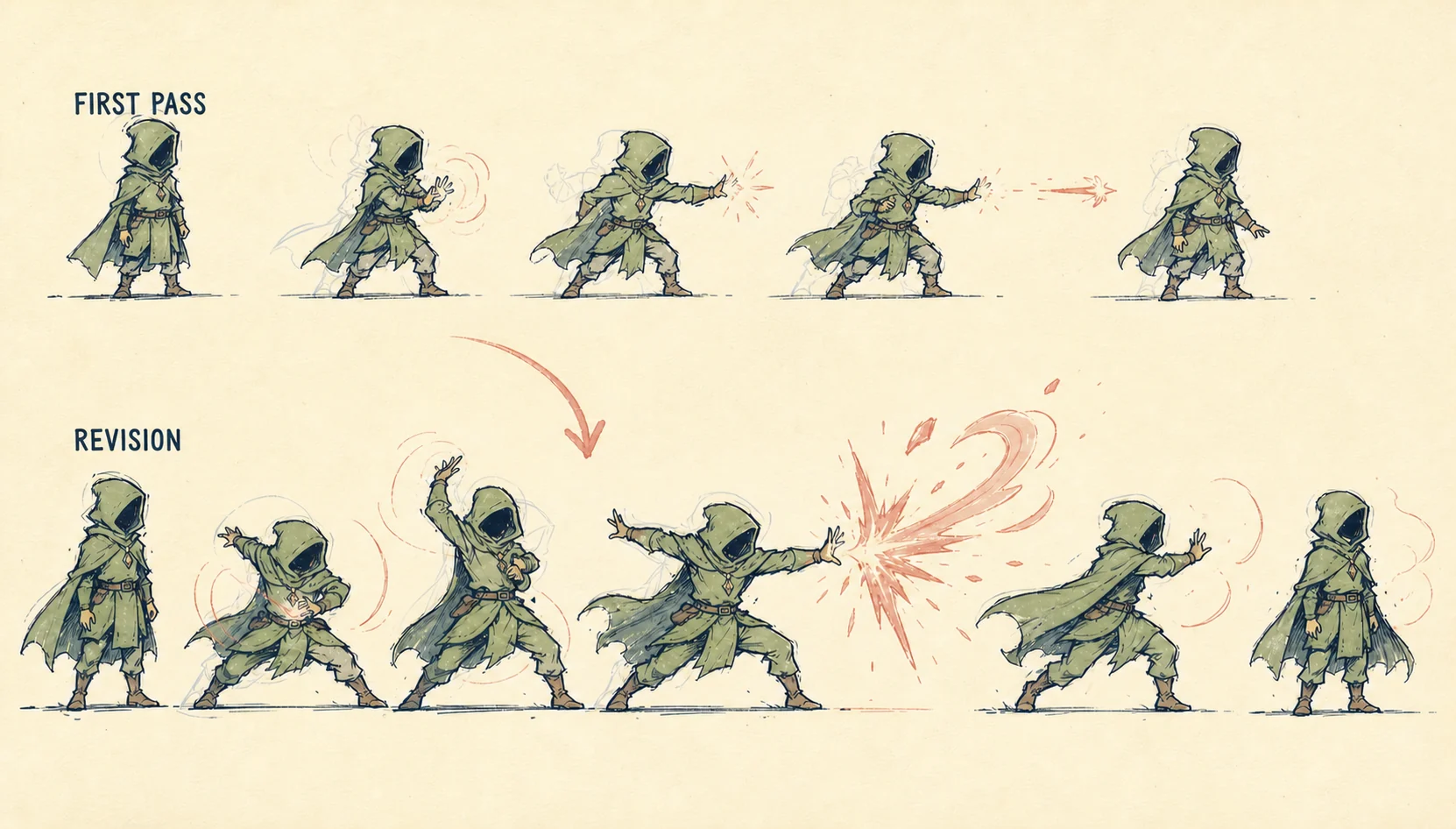
The sprite sheet generator gives you a transparent result you can use now. If the motion needs another pass, keep editing the same character instead of starting again.
Download one PNG that shows the complete action in order.
Continue editing to download each frame as its own transparent PNG.
Improve the motion or create another action without rebuilding the character.
Every frame from the sprite sheet generator is a 256 × 256 transparent PNG. The sheet adapts to the action's real grid and reads from left to right, then top to bottom.
File → Import Sprite Sheet. Set the sprite size to 256 × 256, then touch up individual frames.
Create SpriteFrames, choose Add frames from a Sprite Sheet, and match its horizontal and vertical counts.
Set Sprite Mode to Multiple, then use Slice → Grid By Cell Size → 256 × 256 in the Sprite Editor.
After generation, Continue editing adds individual PNGs, a GIF, animation.json, and setup notes. Need a base character first? Use the AI sprite generator.
No. You can describe both the character and the action in text. An optional reference image gives the generator a clearer visual starting point when you already have a character design.
Yes. The completed sheet downloads as a transparent PNG. You can also continue editing and download every frame as an individual transparent PNG.
No. The frame count and grid can vary with the action. SpriteFuse does not force every result into the same layout.
Each frame uses a 256 × 256 transparent canvas. The full sheet width and height depend on its rows and columns, so the overall PNG changes with the action while every cell stays the same size.
The result on this page downloads as one transparent sprite sheet. Continue editing to open the project, where the export also includes each transparent frame PNG, a GIF preview, metadata, and setup notes.
In Aseprite, choose File → Import Sprite Sheet and set the sprite width and height to 256 pixels; SpriteFuse exports PNGs rather than a native .aseprite file. In Godot, create a SpriteFrames resource, choose Add frames from a Sprite Sheet, and match the horizontal and vertical image counts to the generated grid. In Unity, set Texture Type to Sprite (2D and UI), set Sprite Mode to Multiple, then choose Slice → Grid By Cell Size → 256 × 256 in the Sprite Editor before creating the Animation Clip.
Play the sequence once and look for a face or costume that drifts between frames, sliding feet, an effect clipped by a cell edge, or an ending pose that cannot loop or connect to the next action. If something is wrong, revise that specific issue in SpriteFuse before slicing the sheet. A focused request makes the new version easier to compare with the earlier one. Confirm that the first and last poses also connect to the transitions your game needs.
Yes. Continue editing to describe a visual change, adjust individual frame timing, return to an earlier version, or create another action for the same character.
SpriteFuse creates new character-action frames from text or one optional reference image. If you already have every frame and only need rows, columns, padding, or atlas packing, use a frame-packing tool instead.