Pick a block palette
Mix block families for closer color matches, or keep to concrete, wool or terracotta if that fits the materials you have.
 SpriteFuseOpen the builder
 Make a block-by-block plan from your image. Match colors to real Minecraft concrete, wool or terracotta, then take a numbered guide and exact material list into your world.

Choose an image, then match its colors to blocks you can gather in Minecraft.
Preview each block, check your material total, then take the guide into your world.
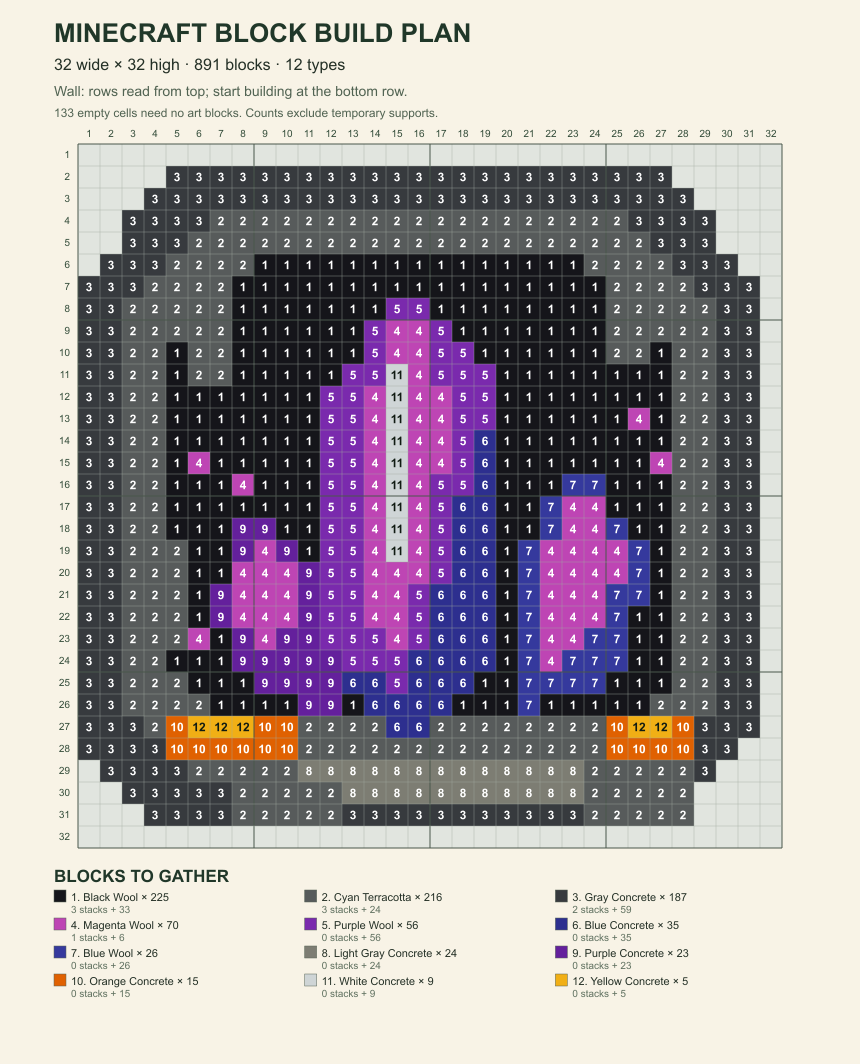
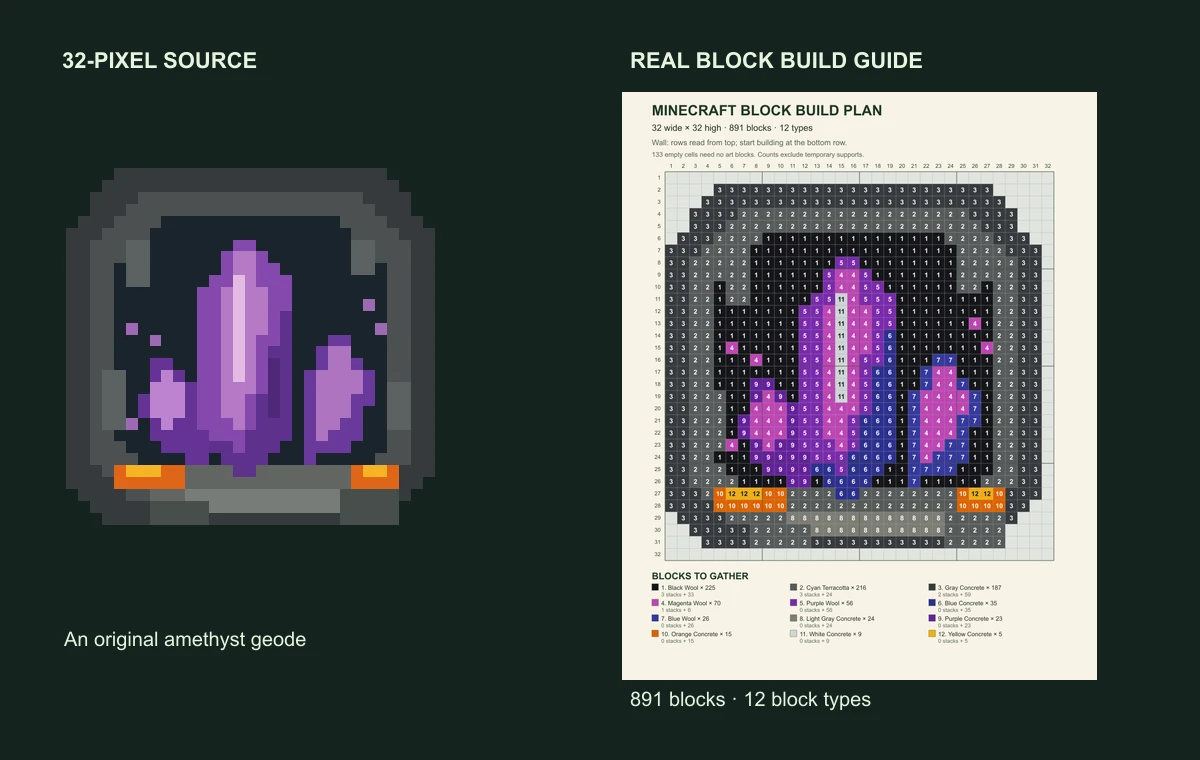
We drew a new 32-pixel geode, then ran it through this same block matcher. The guide below is the actual output; empty positions remain blank.
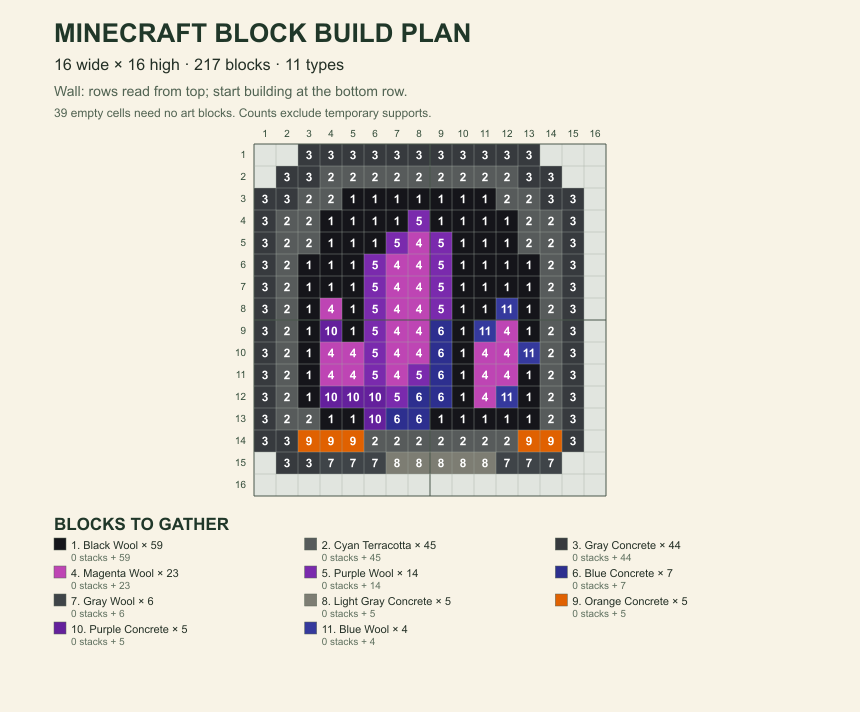
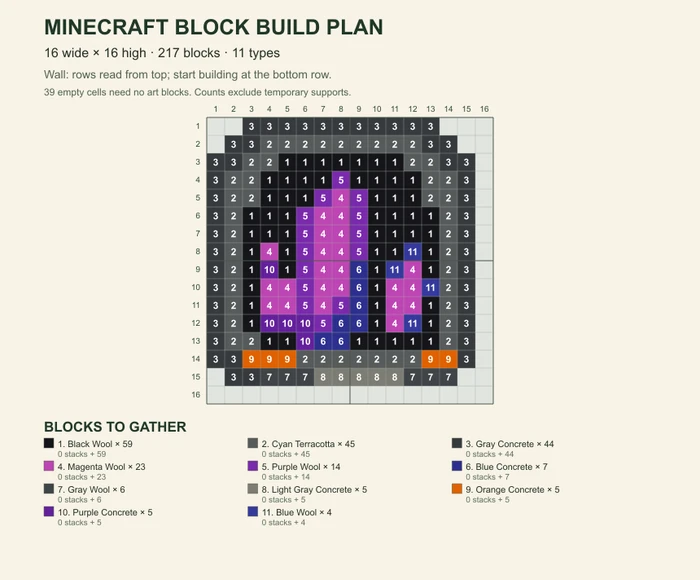
The same geode at half the width uses 217 placed blocks across 11 types. Follow one row at a time, then move to the larger guide when you want more detail.
Choose a simple silhouette first. You can change the width and block family until the preview looks right before collecting anything.
Mix block families for closer color matches, or keep to concrete, wool or terracotta if that fits the materials you have.
Every numbered square names one block in the key. Rows and columns help you keep your place; empty squares are spaces to leave open.
Use the exact counts and 64-block stack totals while gathering. For a wall, place the bottom row first. For a flat build, view the plan from above.
The tool compares each visible image color with sampled Minecraft block texture colors. Switch palettes to see both the image and the material list change. A small palette is easier to gather; a mixed palette can keep more of the source color.
Built for direct wall and ground art. In-game light and biome settings affect appearance; map art needs a different color model.
Yes. Each visible cell is matched to the nearest average block color in the selected concrete, wool or terracotta family. The mixed option considers all three. The reference colors come from Java 1.21.4 block textures; lighting, biome and display settings can make blocks look different in game.
Yes, as a manual build guide. The named concrete, wool and terracotta blocks are available in both editions. Download the PNG or PDF, gather the listed blocks and follow the numbered cells. This tool does not currently export a schematic, litematic, map.dat or Bedrock structure file.
Cells below 50% opacity stay empty and are excluded from the material count. They are blank spaces on the guide. Visible partial transparency is flattened onto white before matching.
Start at 16 or 32 blocks wide for a simple image. Height follows the image aspect ratio. More width preserves detail but increases the blocks to gather and place. The tool supports up to 128 cells per side; dense plans may be easier to follow in a zoomable PNG than on one printed page.
This is a wall or flat-ground block plan viewed directly in the world. It does not simulate Minecraft map colors, biome shading, staircasing, or map.dat. Use a dedicated map art planner when the finished artwork must appear on an in-game map.