
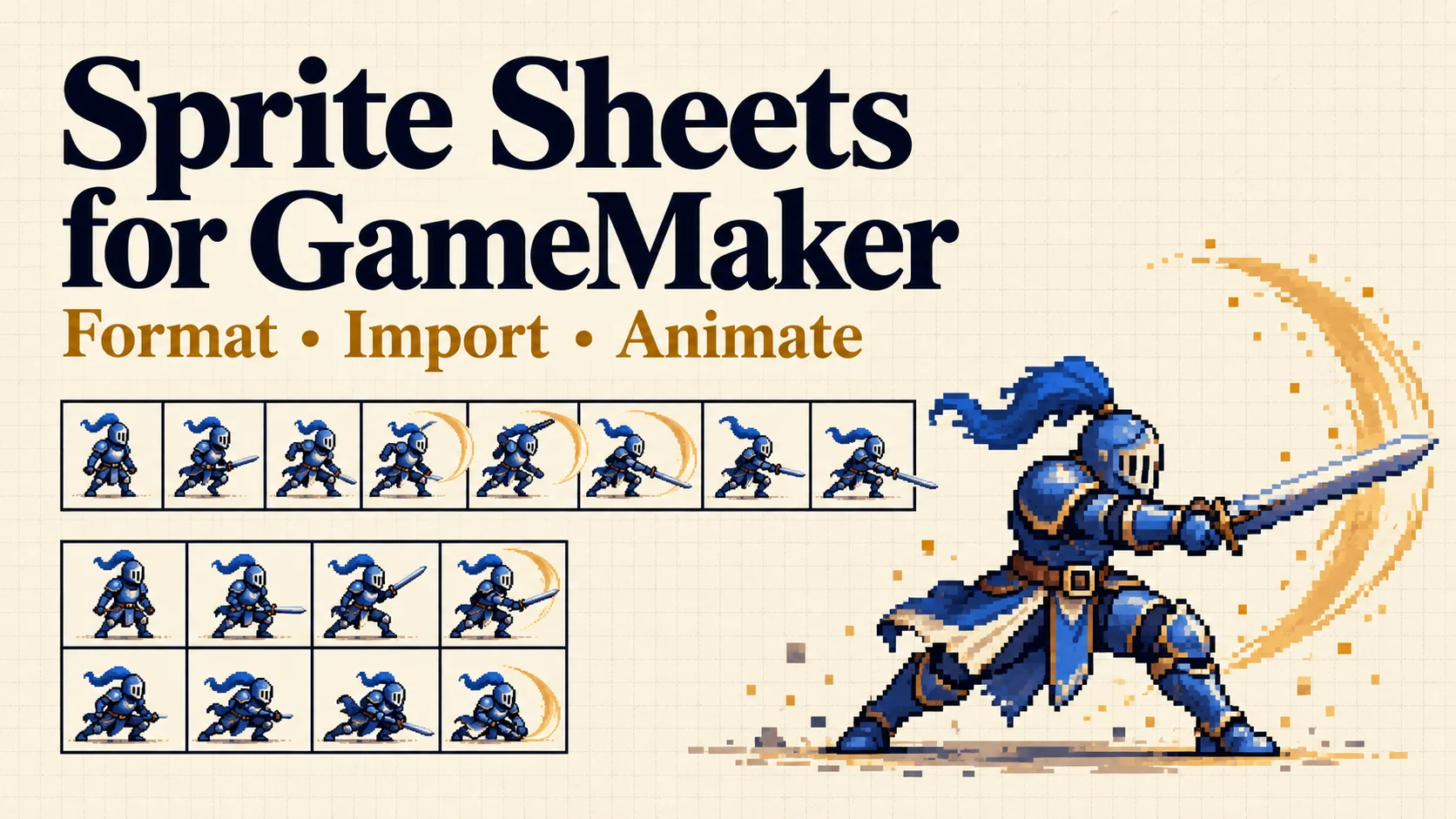
How to Format Sprite Sheets for GameMaker
Format sprite sheets for GameMaker: prepare PNG frames, import a strip or grid, set animation speed and origin, and play the downloadable example project.
GameMaker can turn a sprite sheet into an animation once it knows the size and order of the frames. Use equally sized, transparent PNG frames. For a horizontal strip, add _stripN to the filename, where N is the frame count. For a grid, enter the frame size and number of columns when importing. Then set the playback speed and origin, and put the Sprite in a Room.
Already have separate PNGs? You can select them together in GameMaker and get an animation straight away. The steps below cover that route as well as importing an existing strip or grid, using an eight-frame knight attack as the example. The screenshots show GameMaker LTS on macOS.
Download the example ZIP and extract it. You'll find the eight PNG frames, both sheet layouts and a ready-to-run project. To start with a sheet, grab the strip PNG or grid PNG.

Choose a strip or a grid
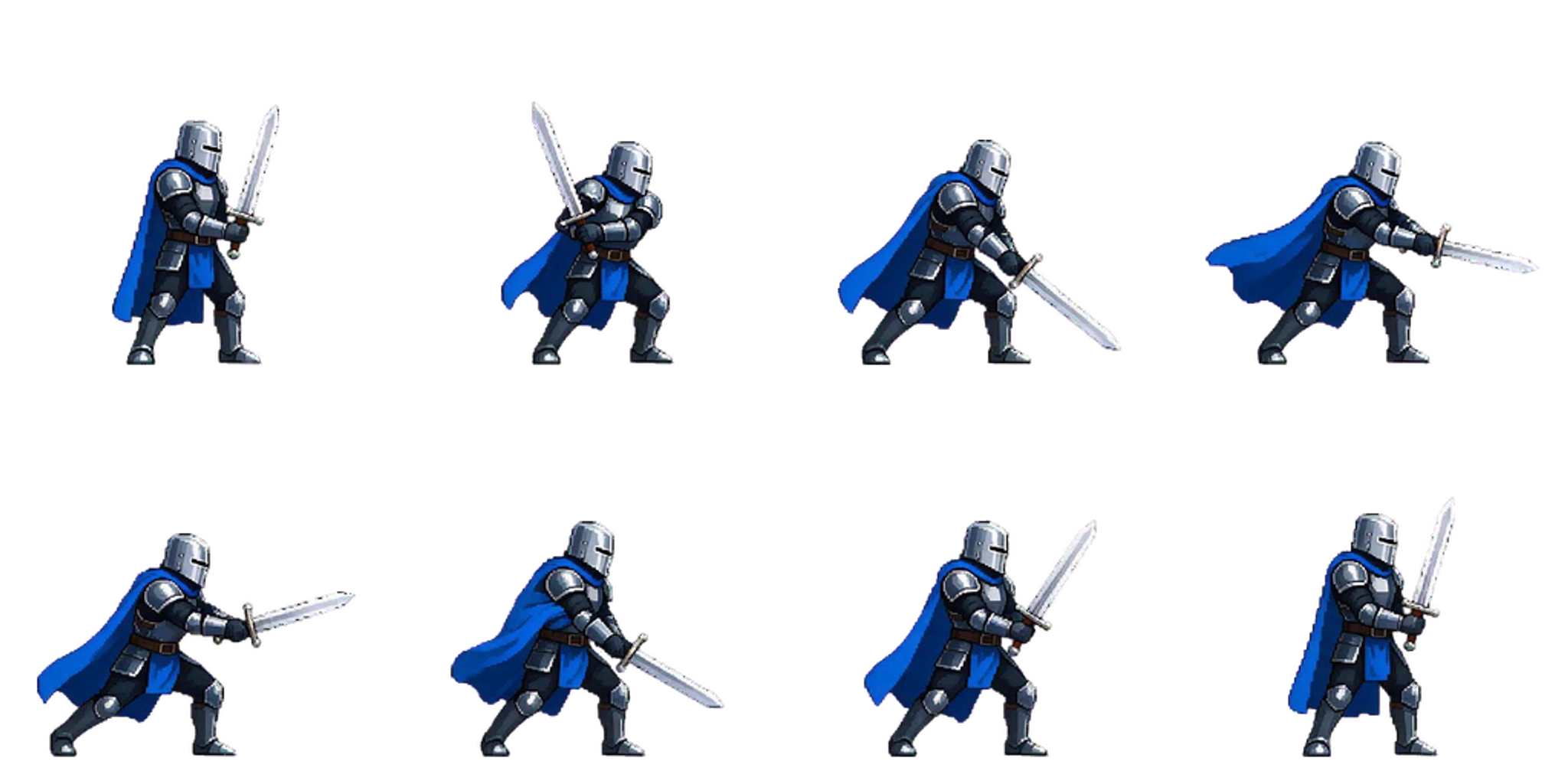
A strip puts the whole animation in one horizontal row. A grid wraps it across several rows. GameMaker turns either layout into the individual images of one Sprite; these images are also called frames or subimages.
For a short animation, start with a strip. Its filename can tell GameMaker how to split it, so there are fewer settings to enter. If your artwork already comes as a grid, keep that layout and use the grid import below.
| Starting file | Example dimensions | What to enter in GameMaker |
|---|---|---|
| Eight separate PNGs | 512×512 each | Select all eight files with Import |
| Horizontal strip | 4096×512 | Use the filename knight_strip8.png |
| Four-column grid | 2048×1024 | 8 frames, 4 per row, 512×512 cells |
The frame size is the size of one cell, including the empty space around the drawing. In the strip above, eight 512-pixel cells sit side by side: 4096 ÷ 8 = 512. You don't need to resize the knight to fill each cell.
Keep the frames in order
Name separate images frame-00.png, frame-01.png and so on. Two-digit numbers keep the files in playback order when you sort by name. Put each animation in its own folder so selecting the attack frames doesn't also pick up an idle pose.
For the example grid, read left to right across the first row, then the second: frames 0–3 go on top, followed by frames 4–7. When you preview the Sprite later, the sword should follow that same sequence.
Prepare transparent PNG frames
Open one of the example PNGs in your image editor. The file is 512×512, even though the knight occupies only part of that square. Keep that full canvas when exporting the remaining poses.
Use the same canvas size for every frame in an animation. If your character is drawn on a 64×64 canvas, export every pose at 64×64. Leave enough space for the widest pose, such as a sword swing, rather than cropping each drawing tightly. That shared space keeps the character lined up as the animation changes.
Export as PNG with transparency. The empty area should remain transparent when you place the image over another background. If a white box appears around the character, return to the image editor and remove the background before exporting again.
Turn PNG frames into a Sprite without code
You can do this inside GameMaker, without a separate packing tool:
- Open your project and create a Sprite in the Asset Browser. Give it a name such as
sprattack. - Click Import and open the folder containing the PNG frames.
- Sort the files by name. Select the first frame, hold Shift, then select the last frame so the whole sequence is highlighted.
- Click Open and confirm OK if prompted. GameMaker adds the images as frames of that Sprite.
- Use the preview's play control. The example should show eight 512×512 frames in sequence.

At this point, the animation is already in GameMaker. Continue to the speed and origin settings below.
To save a reusable sheet as well, click Edit Image, then choose Image → Export to PNG. GameMaker's PNG export places the frames in a horizontal strip and adds a _stripN suffix. Eight 512×512 frames make a 4096×512 sheet. Keep that suffix when naming the file, such as knight_strip8.png; it will supply the frame count the next time you import it.
Import a horizontal sprite strip
If you downloaded the example strip or exported one from another editor, start here:
- Create a Sprite and name it
sprstrip. - Click Import and select
knight_strip8.png. - Look at the frame count in the Sprite editor. You should have 8 frames, with a frame size of 512×512.
- Press the preview's play button to see the attack.
The _strip8 part of the filename is what makes the automatic split work. GameMaker's strip-image naming rule uses the number after _strip as the frame count. For a six-frame animation, use _strip6; the number describes frames, not pixels.
If the import shows one long image, check that the filename ends with _strip8.png and import it again. Also check the file you selected: a four-column grid needs the next method rather than the horizontal-strip shortcut.
Step through the frames once before moving on. The knight should keep the same size, and each frame should contain a whole pose. If you see half a knight beside half of the next one, the frame boundaries need correcting.
Import and slice a grid sprite sheet
For the grid route, use knight-grid.png from the download. It contains the same eight poses arranged in four columns and two rows, with no gaps between cells.
Create a Sprite named sprgrid. In its Inspector, choose Import Strip and open the grid PNG. This opens Convert to Frames, where you describe the layout. The preview on the right shows what each extracted frame will contain.

Enter these settings, then click Convert:
| Setting | Example value |
|---|---|
| Number of Frames | 8 |
| Frames per Row | 4 |
| Frame Width / Frame Height | 512 / 512 |
| Horizontal / Vertical Cell Offset | 0 / 0 |
| Horizontal / Vertical Pixel Offset | 0 / 0 |
| Horizontal / Vertical Separation | 0 / 0 |
Number of Frames is the total across the whole sheet. Frames per Row is the number of columns. Keeping those two fields separate is the key to importing both rows: enter 8 and 4, rather than 4 and 4.
Use your own sheet's measurements when adapting the settings. For example, a grid of 64×64 frames needs 64 for both frame dimensions. The selection in the preview should surround one complete cell, including its transparent border. If your sheet has a gutter between cells, enter that width as separation; the example uses zero.
After conversion, play the preview. The grid and strip examples should give you the same attack, with eight frames in the same order.
Set animation speed and origin
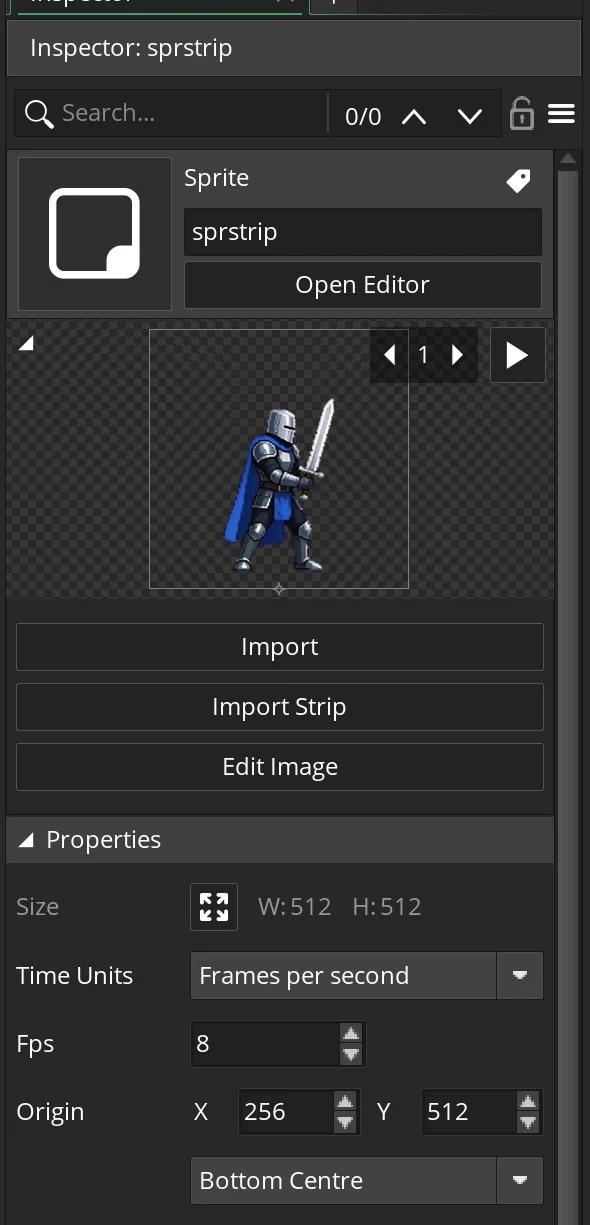
In the Sprite editor or Inspector, set the time unit to Frames per second and the speed to 8. Eight frames at 8 FPS make a one-second attack. Press play, then try 6 FPS for a slower swing or 12 FPS for a quicker one. Choose the pace that suits your game.
Keep the time unit on Frames per second while doing this. GameMaker also offers Frames per game frame, which uses a different scale. The Sprite Editor guide explains both modes if you need to work with project-controlled timing later.
Next, set Origin → Bottom Centre. For the 512×512 example, that gives X = 256, Y = 512. The origin is the point GameMaker places at an Object instance's room position. A bottom origin is a useful starting point for a standing character because positioning it in the room feels like placing it on the ground.
Put the origin at the character's feet
Bottom Centre uses the bottom of the canvas. If your drawing has a large transparent area below its feet, move the origin up to the intended ground point. You can click in the Sprite preview or enter the X and Y coordinates.
Use the same origin for that character's related animations. When you switch from idle to attack, both Sprites should refer to the same ground point. Play the sequence and watch the feet: if they slide despite matching origins, line up the drawings on their shared canvas in your image editor.
Put the Sprite in a Room and run it
The Sprite preview shows the animation, but an Object puts it into the game. Think of the Sprite as the artwork and the Object as the thing you place in the room.
- Create an Object named
objattack. - In its Sprite field, choose the Sprite you imported:
sprattackfor separate PNGs,sprstripfor a strip, orsprgridfor a grid. - Open
Room1and select its Instances layer. - Drag
objattackfrom the Asset Browser into the visible part of the room. - Save the project and click the main toolbar's Run button.

The downloadable example puts two Objects in a 1366×768 room: objgrid with sprgrid at (416,672), and objstrip with sprstrip at (992,672). Use this arrangement to compare both layouts; one Object is enough for the animation you just imported. Both sample Objects have empty event lists because the Sprite settings provide playback.

Sampled views of the running room. Open the project to see the animation at 8 FPS.
The left knight uses the grid and the right uses the strip. Both follow the same poses. With your animation running in the room, adjust how the attack feels: slow it down to read the anticipation, speed it up to make the strike sharper, or replace the artwork with your own frames.
Fix common sprite sheet import problems
Most import problems come from the sheet layout or the Sprite's placement. Start with the symptom you can see:
| Problem | What to change |
|---|---|
| One wide frame appears | Add the correct _stripN suffix to a horizontal strip and reimport |
| Each frame shows pieces of two poses | Use the full cell width and height in Convert to Frames |
| The second row is missing | Set Number of Frames to the total, then enter the number of columns in Frames per Row |
| Poses play in the wrong order | Sort the original PNGs by their numbered names, or arrange the grid left to right across each row |
| The character jumps when animations change | Match canvas size and origin across the character's Sprites |
| A white box surrounds the character | Export the artwork again as a transparent PNG |
| The preview works but the room is empty | Assign the Sprite to an Object and place an instance inside the visible room |
| The animation is too fast | Select Frames per second and lower the Sprite's speed |
If a thin pale edge remains around otherwise transparent art, view it on a dark background in your image editor. Remove the unwanted edge colour there, then reimport the PNG. This is easier to spot before the character sits against a busy game background.
A sheet with tightly trimmed or rotated pieces is a texture atlas. Use its matching data file and an atlas workflow, such as the options in CodeAndWeb's GameMaker guide. The regular-cell import above is intended for animation strips and grids.
Use the example with your own animation
Open GameMakerProject/SpriteFuseTAN611.yyp from the extracted ZIP to start with the two-knight scene. Replace one Sprite with your own animation, set its speed and origin, then run the room again. Keeping the working knight beside it gives you a useful reference while you adjust the new one.
Begin with one short action rather than a sheet containing every animation for a character. Get that action playing at the right size and position, then add idle or walk using the same canvas and origin. If you need artwork to start from, the SpriteFuse Sprite Sheet Generator can create a starting animation; bring its frames into the same import workflow.
The sample artwork is for personal learning and evaluation; its included license has the details. GameMaker's free non-commercial license is enough to follow along, while commercial releases need the appropriate license.
Author

Categories
More Posts
How to Make Pixel Art in Minecraft with a Block-by-Block Plan
Turn a picture into Minecraft pixel art: choose a build size, compare real block palettes, gather materials, and place each row from a numbered guide.
How to Make a Tileset: Draw, Test, and Export Pixel Art
Learn how to make a tileset with a small grass-and-pond example. Draw edges and corners, check seams, export a PNG, and try the downloadable Godot project.
How to Make a Perler Bead Pattern from a Picture
Make a Perler bead pattern from a picture. Follow illustrated steps for grid size, colors, bead counts and printable charts, with a free heart.