

Normal Mapping for 2D Animation: A Godot Walkthrough
Generate normal maps for animated sprites, keep color and normal frames aligned, and add moving lights in Godot 4.7.2 with a downloadable example.
A normal map can make a walking sprite respond to a passing torch, but the purple texture is only half the job. The normal frame must show the same pose as the color frame, at the same moment. Keep the two sheets identical in layout, bind them as one texture resource, and animate one frame selector.
This walkthrough takes a transparent character sheet through two browser generators and into Godot 4.7.2. You will generate normals, preserve the animation’s frame relationships, and compare the complete walk under moving light. The preparation steps apply beyond Godot; the engine instructions below use Godot’s Compatibility renderer.
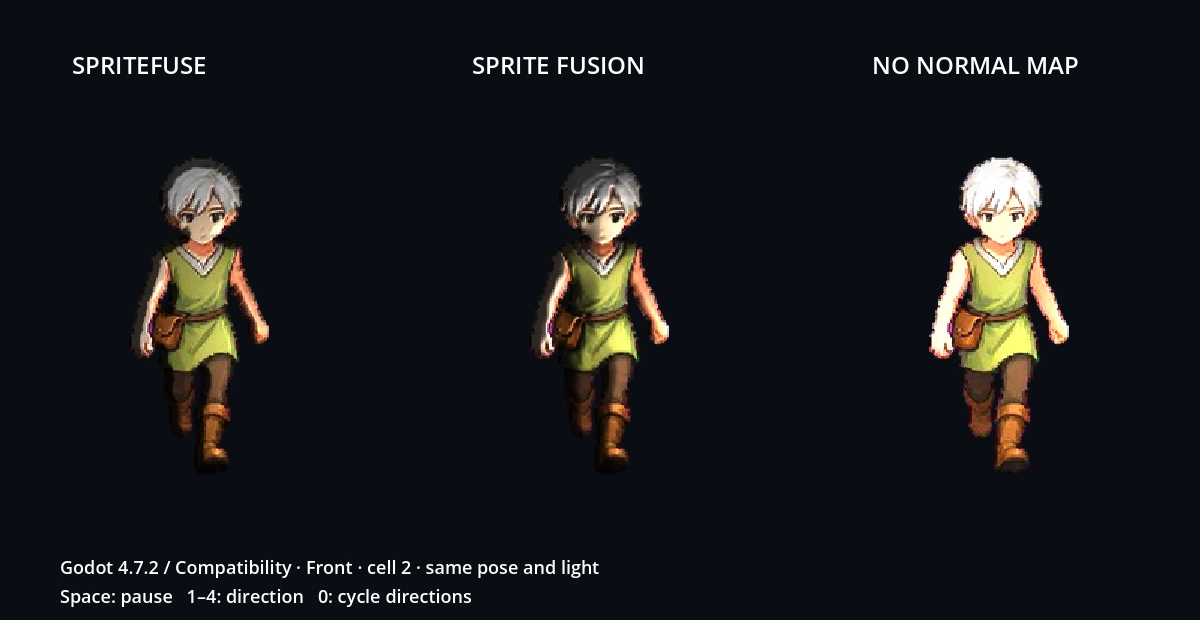
What a normal map changes in a 2D animation
The color texture contains the drawing. The normal texture describes which direction each small part of its surface faces. The engine combines those directions with the light’s position, making a sleeve or boot brighten differently as the light moves.
That changes the shading, while the sprite remains flat geometry. It does not give the character a new silhouette or automatically create a 3D shadow. Our scene leaves cast shadows off so you can see the surface-lighting difference clearly.
For animation, think of each color pose and its normal pose as a pair. If a sheet has twelve color cells, its normal sheet needs the same twelve cells in the same locations. A frame selector should move across both sheets together.

Choose a normal-map tool for your animation
Start with a tool that can preserve the layout you already use. We ran the same 768 × 1024 transparent PNG through Sprite Fusion’s Sprite Normals and the SpriteFuse normal map generator. Both browser versions were tested on October 23, 2026. They returned a normal PNG at the original dimensions, with every Alpha value matching the source in this example.
The useful difference is how you prepare and carry the animation settings forward:
| Need | Sprite Fusion Sprite Normals | SpriteFuse |
|---|---|---|
| Input used here | Transparent PNG sheet | Transparent PNG sheet with an explicit 3 × 4 grid |
| Controls used | Strength, Detail, Volume; OpenGL | Relief strength, Rounded edge, Painted detail; OpenGL |
| Output used | Normal PNG; keep the original color sheet | Normal PNG or paired ZIP with color, normal, and frame metadata |
| Animation setup for this example | Define the sheet layout and playback in Godot | Set columns, rows, active frames, and cell durations before export; carry the intended sequence into Godot |
| Cost for the path tested | No sign-in or payment | No sign-in or payment |
This is a comparison of the paths we actually used. Sprite Fusion’s page also offers animated-image inputs, but this walkthrough tests its PNG-sheet path. SpriteFuse accepts static PNG/WebP images and regular sheets; its current upload limits are 10 MiB, 4096 pixels per side, and four million pixels total. A grid can contain up to 256 cells.

Choose Sprite Fusion when its relief controls give your drawing the surface you want. Choose SpriteFuse when explicit grid settings and the paired export help you keep the files together. Compare a complete action under your engine’s lights before committing to either output: the same drawing produced visibly different relief in our scene, especially around the hair and tunic.
Generate matching normal frames from a transparent sheet
Prepare the color animation
Use transparent frames you own or have permission to use. If you have already made a character with SpriteFuse, its transparent animation export is a suitable starting point. Finish the color poses before generating their companion normals.
Our example sheet has three columns and four direction rows. Each cell is 256 × 256 pixels, with no margins or spacing. The rows face front, left, right, and back. Keep that canvas and cell arrangement unchanged through normal generation.
If your artwork uses an irregular atlas, prepare a regular sheet first. The sprite sheet cutter can extract cells from an existing regular grid; it does not infer an irregular character layout.
Generate the SpriteFuse version
- Open the normal map generator and choose the transparent color PNG.
- Expand Sheet layout & engine settings. Set Columns to
3, Rows to4, and Frames to12for this sample. - Enter the cell durations shown below. Enable Preview each row separately so the preview does not treat a direction change as another step of the walk.
- Choose OpenGL (+Y) · Godot. Start with Relief strength 2, Rounded edge 8 px, and Painted detail 20%.
- Select Generate normal map. Inspect the color, normal, and lighting views, then play each row.
- Download Color + normal ZIP. Keep
color.png,normal.png, andanimation.jsontogether. Normal PNG is useful when your existing color sheet is already in place.
120,80,120,120,80,120,120,80,120,120,80,120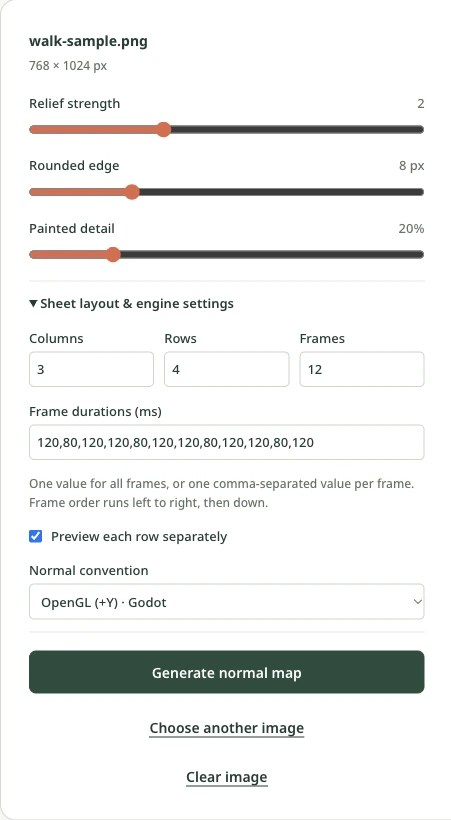
Rounded edge gives the silhouette a bevel; painted detail brings marks inside the drawing into the relief. Adjust while looking at the lit character, rather than judging the blue-purple texture alone. A painted dark line is part of the artwork, so its generated relief may not match the shape you intended.
The browser lighting view helps you choose settings. Make the final decision in the game engine, using the light setup your character will actually encounter.
Generate the third-party version
Open Sprite Fusion Sprite Normals and upload the same color PNG. We used Strength 1.5, Detail 6.0, Volume 1.15, OpenGL, and Tileable texture off. The tool generated after upload; download the normal map from the image’s download control.
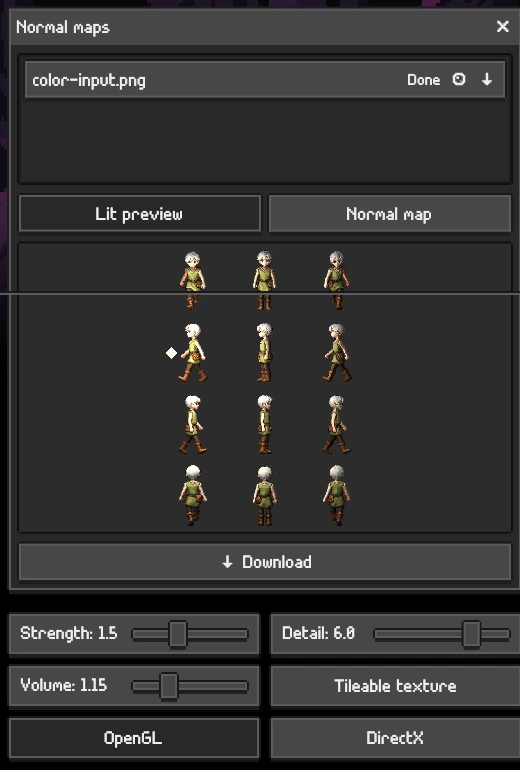
Keep your original color sheet beside that normal PNG. For this static-sheet path, we supplied the grid and timing in Godot ourselves. Do not resize or trim the normal image independently after downloading it.
Sprite Fusion’s hosted tool did not display a numeric release version when tested on October 23, 2026. The download, settings, and original input are included with the example so you can inspect the result even if the web interface changes.
Keep color and normal frames aligned
Check the pair before adding lights. A convincing static pose can conceal a problem that appears only when the animation changes frames.
| Check | This example | What to keep together |
|---|---|---|
| Image dimensions | 768 × 1024 for both textures | Original canvas size |
| Cell region | 256 × 256; 3 columns × 4 rows | The same rectangle in each sheet |
| Cell order | Left to right, then top to bottom | Pose index and direction row |
| Playback sequence | 0, 1, 2, 1 within each row | The same repeated poses |
| Step durations | 120, 80, 120, 80 ms | One shared playback clock |
| Transparency | Both exported normal images retain the input Alpha | The same transparent edge pixels |
The source sheet contains three unique poses per direction. For this tutorial, we repeat the center pose to close the walk: 0 → 1 → 2 → 1, then back to 0. That makes a 400 ms cycle. In the second row, the equivalent sheet indices are 3, 4, 5, 4.
The paired ZIP records the twelve grid cells and the durations entered in the generator. The repeated center pose is an additional playback choice in the sample project’s animation.json. Keep that distinction clear when adapting an export: cell order describes where a pose lives; playback order describes when you show it.
In our Godot scene, each normal texture uses the color texture’s frame region automatically. There is no separate normal animation to synchronize. If you trim or repack a sheet later, apply the identical transformation to both textures and update the layout settings.
Add animated normal-map lighting in Godot 4.7.2
These steps use Godot 4.7.2, Compatibility, tested on macOS. They use Sprite2D with a CanvasTexture and a short frame driver. Other Godot nodes or engine renderers may need a different setup.
Bind the color and normal textures
Create a 2D scene with a Node2D root and a Sprite2D child. Copy both PNGs into the project. For this setup, keep the imports lossless, without resizing or mipmaps, and use Nearest filtering for the sprite.
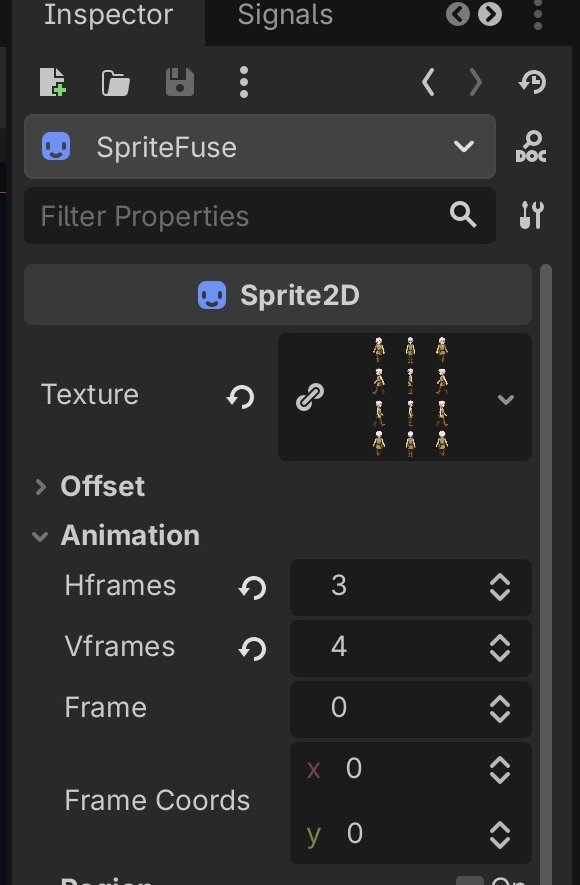
In Sprite2D’s Texture field, create a CanvasTexture resource. Expand it, then assign the color sheet to Diffuse → Texture and the normal sheet to NormalMap → Texture. The CanvasTexture resource holds these channels together for 2D lighting.
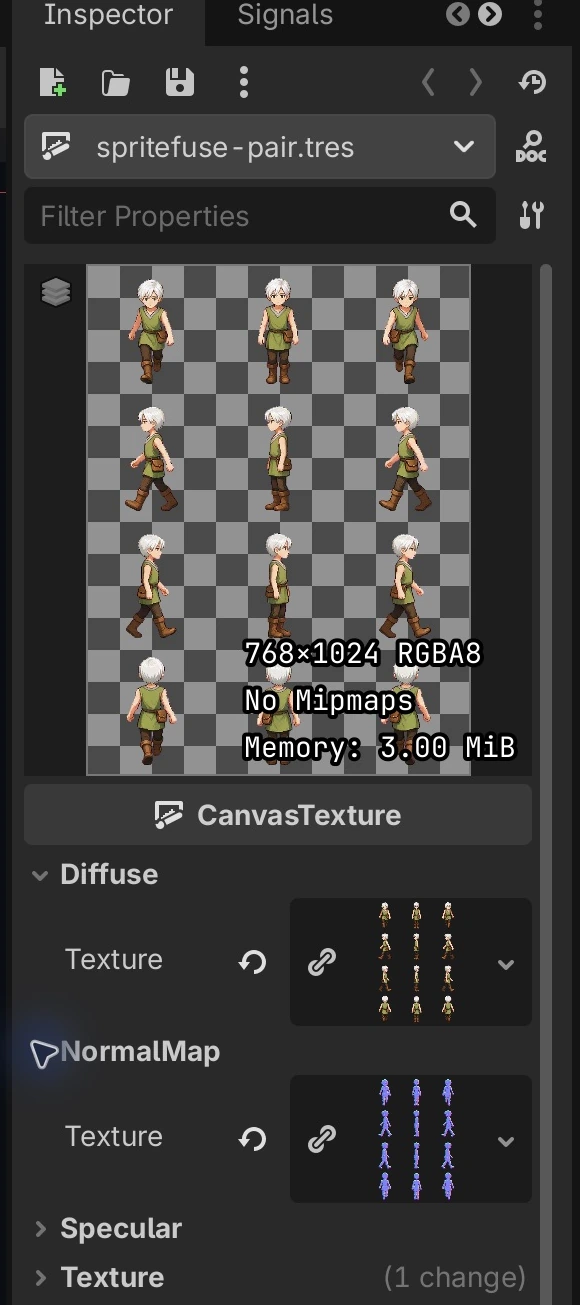
Under Sprite2D’s Animation properties, set Hframes = 3 and Vframes = 4. Change Frame by hand before animating: both channels should move to the corresponding pose. Sprite2D’s frame properties select the region of the shared texture resource.
Animate one frame selector
The first row uses the following sequence. Attach this minimal script to the Sprite2D to try it on its own:
extends Sprite2D

var poses := [0, 1, 2, 1]
var durations_ms := [120.0, 80.0, 120.0, 80.0]
var step := 0
var elapsed_ms := 0.0

func _ready() -> void:
    hframes = 3
    vframes = 4
    frame = poses[step]

func _process(delta: float) -> void:
    elapsed_ms += delta * 1000.0
    while elapsed_ms >= durations_ms[step]:
        elapsed_ms -= durations_ms[step]
        step = (step + 1) % poses.size()
    frame = poses[step]
The normal map follows frame because it belongs to the same CanvasTexture. For another direction, add the row offset to each pose index. The downloadable project extends this approach to all four rows and the side-by-side comparison.
Keep both channels on this same selector if you change the animation speed. Two independently playing animations can show different poses even when their source files line up perfectly.
Add a light with visible height
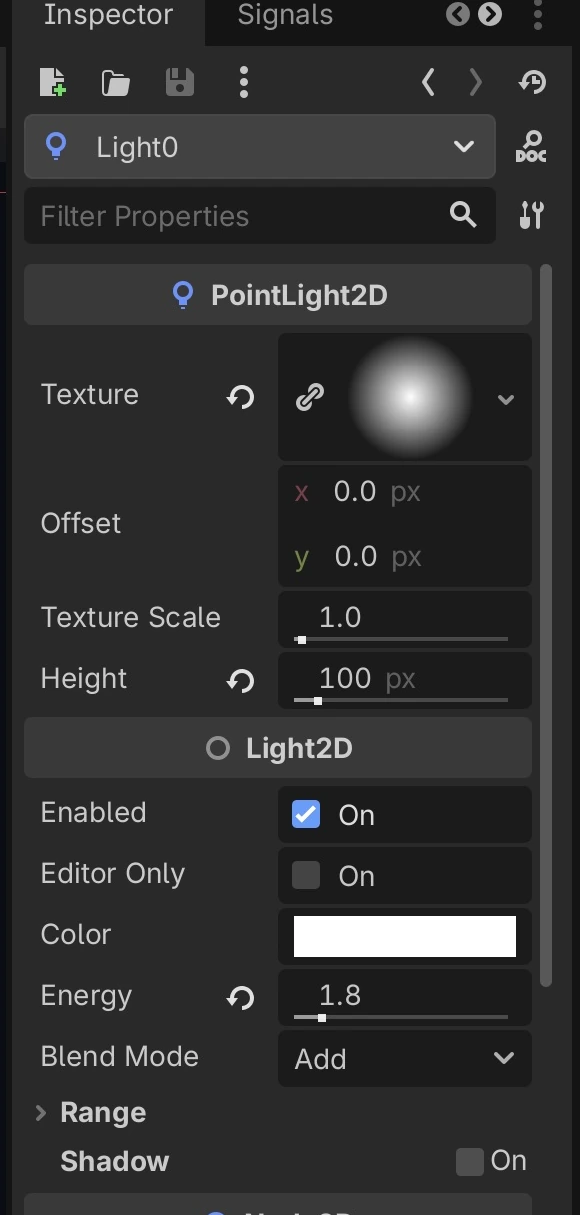
Add a PointLight2D. Give its Texture a radial GradientTexture2D, with white at the center and transparent white at the edge. Our example uses a 768 × 768 light texture, Height 100, and Energy 1.8.
Move the light beside and above the character. Its Height property changes how the light interacts with normal maps; leaving the light flat against the drawing produces a different response from a raised light.
Add CanvasModulate with a dark gray color; the sample uses RGB 0.18, 0.18, 0.18. This reduces ambient brightness so the moving light is easier to judge. See Godot’s 2D lights and normal-map setup for the relationship between these nodes.
For a single character, the sprite’s light mask and the light’s item cull mask must overlap. The comparison scene uses separate matching masks for each column so one column’s light does not spill onto its neighbors. Each light still follows the same path relative to its own sprite.
Check the complete animation under moving light
Play the whole action, then move the light through several directions. In our example, both generated normal maps changed the shading while all three columns kept the same walking pose. The version without a normal map retained a flatter light response. Watch the tunic and hair as well as the outer edge; the third-party default produces stronger changes in some painted details.
Pause on a pose if the result looks wrong. The checks below separate the pairing problem from the lighting problem:
- The relief belongs to another pose: check the cell rectangle, frame index, and playback sequence first. Changing light energy will not fix a mismatched pair.
- Raised areas respond from the opposite vertical direction: check the normal convention. This scene uses OpenGL +Y. In a separate known-slope check, flipping the green channel reversed the response to upper and lower lights.
- The whole character is hard to read: move the light and adjust its height or energy before changing the normal texture. A normal map can receive very little light from some angles.
- Small painted features shimmer or look too deeply carved: compare the full action, then reduce the relevant detail control and regenerate a matching sheet. Evaluate the new output in the same scene.
We did not see a color pose paired with the wrong normal pose in the complete four-direction sample. That establishes the frame-binding path for these files; the generated shading still follows the source drawing’s changing details. Use your own action and gameplay lights to decide whether the artistic result is suitable.
Download the example and use your own sprite
Download the Godot project and paired textures. It contains the original transparent sheet, both actual normal exports, editable texture resources, and the four-direction player. The README records the tool settings and explains how to recreate the comparison.
Open main.tscn, run the project, and press 1–4 to hold a direction or 0 to cycle through them. Space pauses the animation. Replace the color sheet and its companion normal sheet together. In animation.json, set columns and rows to the new grid, list the local column indices in rowSequence, and give each step a matching positive durationMs value. Then replay the whole action under the moving light.
Asset credits
Character artwork and original color sheet: SpriteFuse public walking-sprite demo. Normal textures: our actual SpriteFuse and Sprite Fusion exports. Godot images and motion: our example project. The frame-pairing illustration is explanatory.
Author

Categories
More Posts
How to Make a Perler Bead Pattern from a Picture
Make a Perler bead pattern from a picture. Follow illustrated steps for grid size, colors, bead counts and printable charts, with a free heart.

How to Make Game Assets for Your First Game
Learn how to make game assets for 2D and 3D games, from a consistent asset list to sprites, UI, sound and a working Godot example you can download.
How to Make a Tileset: Draw, Test, and Export Pixel Art
Learn how to make a tileset with a small grass-and-pond example. Draw edges and corners, check seams, export a PNG, and try the downloadable Godot project.