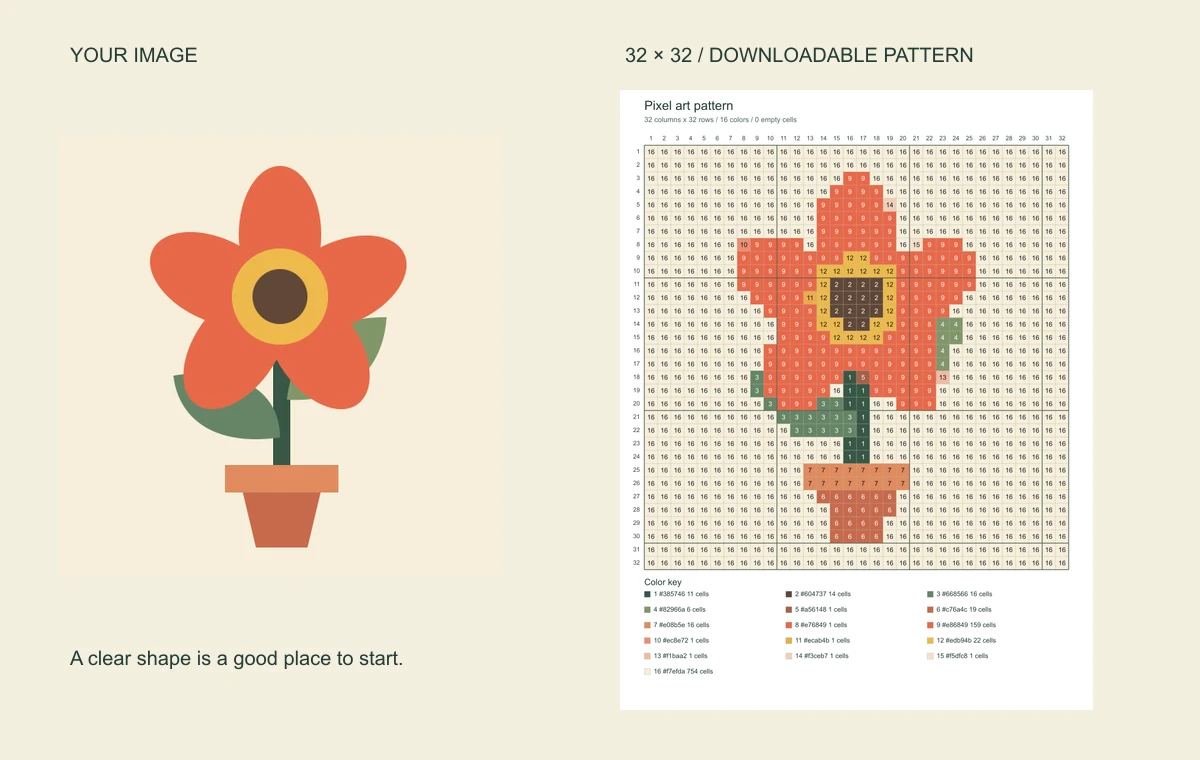
A flower for your next craft
A clear outline and broad color areas make a useful first pattern. Keep the chart beside your materials and follow one square at a time.
 SpriteFuseMake a grid
Turn your picture into a pattern you can follow, square by square.
Or take a blank grid and make something of your own.
Free downloads. No account or watermark.
Your images stay in this browser.
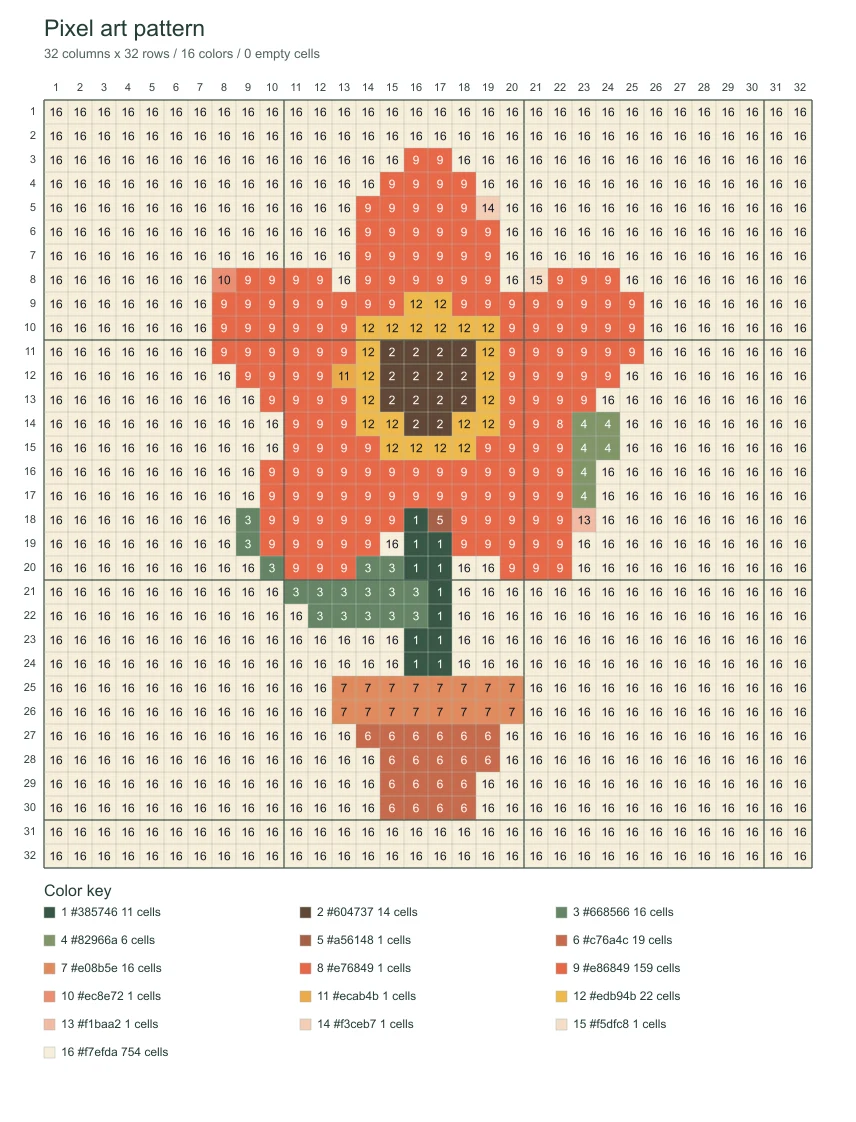 EXAMPLE PATTERN · LOAD IT TO MAKE IT YOURS
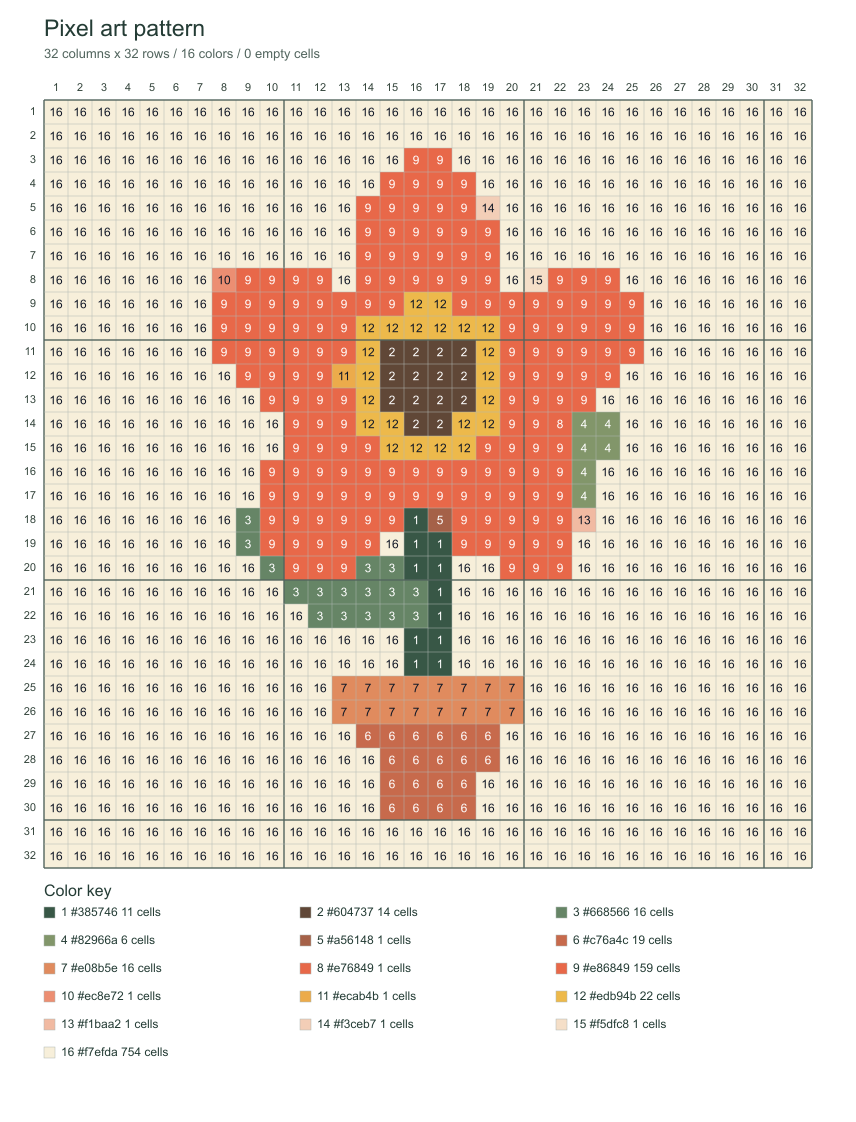
See the original beside the finished pixel art grid. Open an example to try the settings, or download the actual pattern shown here. You do not need to find an image first.
A clear outline and broad color areas make a useful first pattern. Keep the chart beside your materials and follow one square at a time.
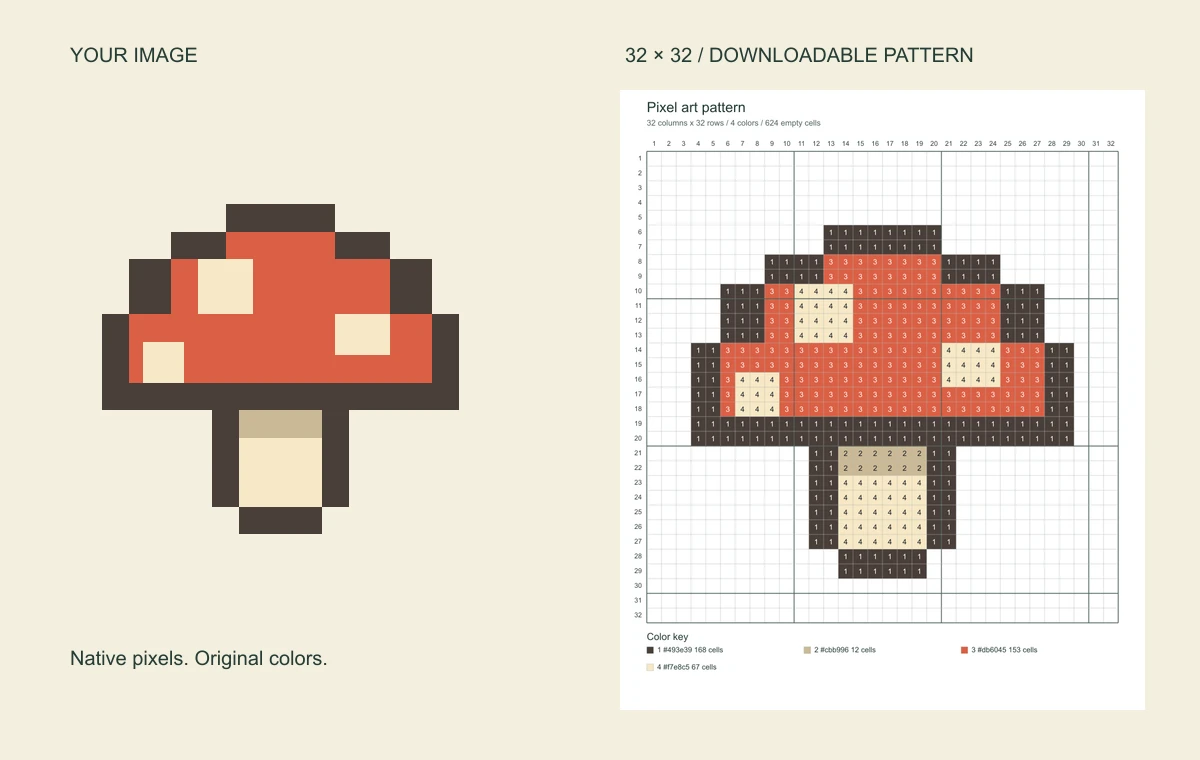
Already have a small pixel drawing? Original size and Original colors add a grid without blending its neighboring pixels.
A useful pixel art grid makes the next square easier to find. Keep the controls simple and let the chart carry the detail.
Row and column coordinates locate a cell. Optional numbers inside it identify its color. Heavier lines every ten squares help you count across larger areas without starting over.
Choose up to 8, 16 or 32 colors. Fewer shades can make a pattern easier to follow; too few may merge an outline with its background. Start with 16 and check the important edges.
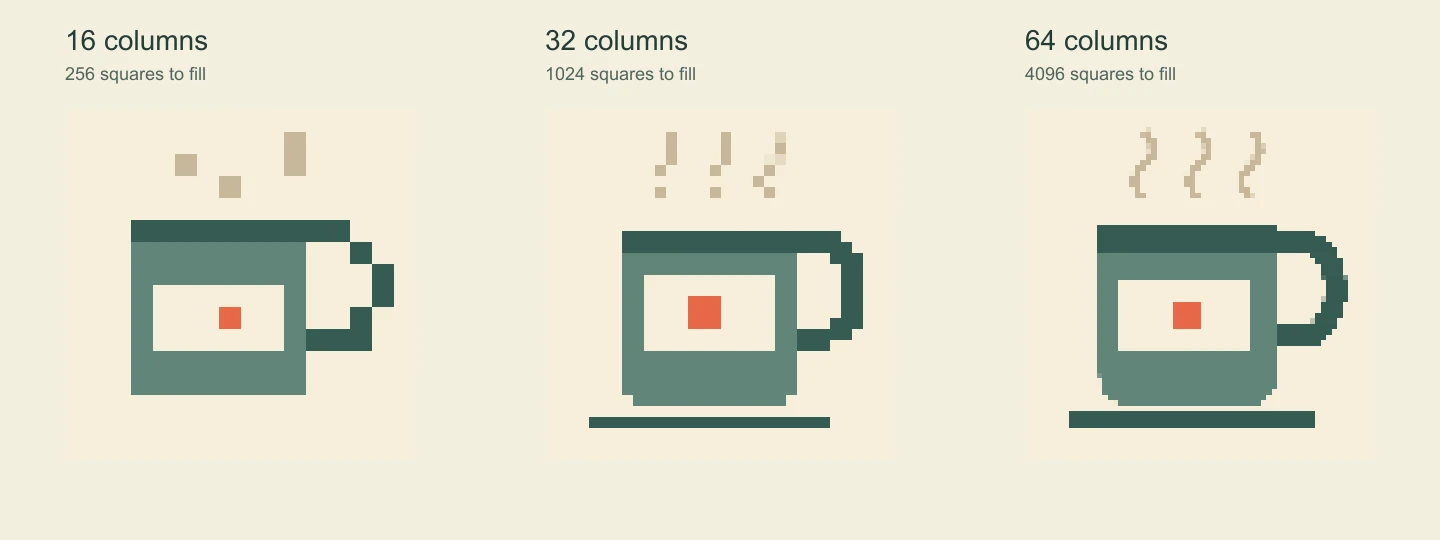
More squares preserve smaller features, but also mean more squares to fill. Photos keep their proportions. Compare the same picture below before choosing your project size.
When turning a photo into pixel art with a grid, choose one clear subject against a simple background. At 16 columns, a face or a small detail may disappear. Try 32 or 64, then check the preview. Crop away distractions in your usual image app before uploading if the subject looks too small.
You have a design you like, but copying it freehand is difficult. A pixel art grid gives you a reference to follow in small, countable pieces. Match the paper’s rows and columns to your pattern before drawing.
Use a blank sheet for symmetry, coordinates or a first character drawing. A ready-made example gives students something concrete to copy; an empty grid leaves room for their own ideas. Print one test sheet before making a class set.
Bring an existing image to a bead, stitch or mosaic project as a visual reference. Check the overall size against your material first. The chart describes digital colors; choose the closest matches from the supplies you actually have.
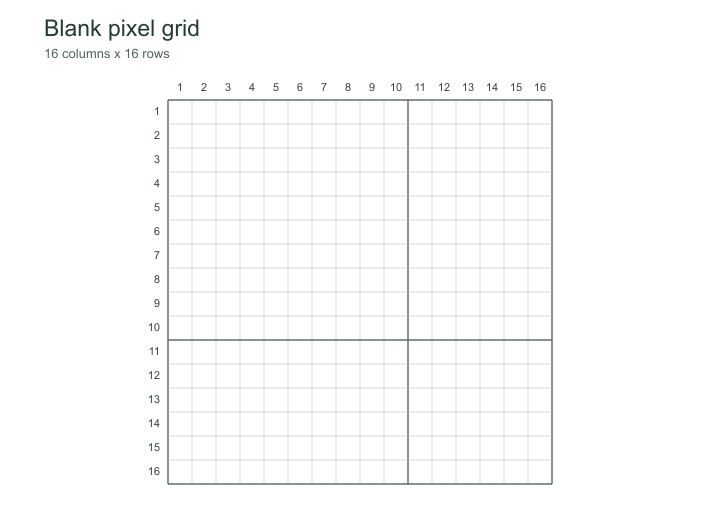
No picture needed. Download a numbered template as a PDF or PNG. Need a rectangle? Open the tool to set custom rows and columns; every cell stays square.
 16 × 16
256 cells for a simple shape, initials or a first sketch.
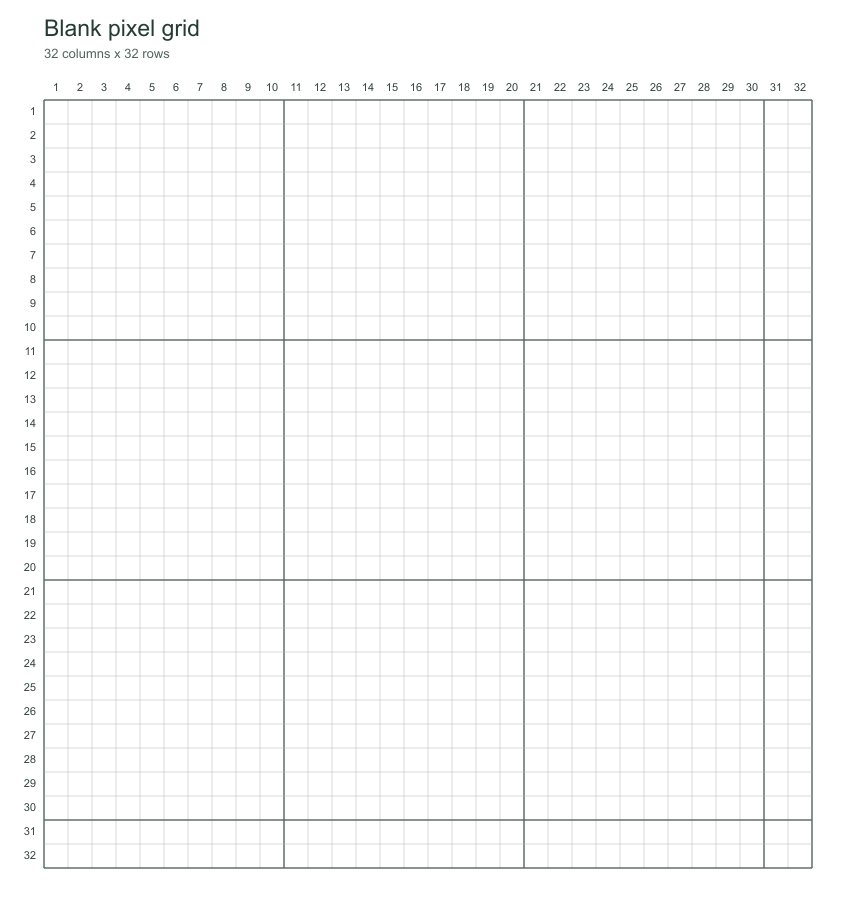
Customize this grid 32 × 32
1,024 cells for a character or motif. Sketch the outline first.
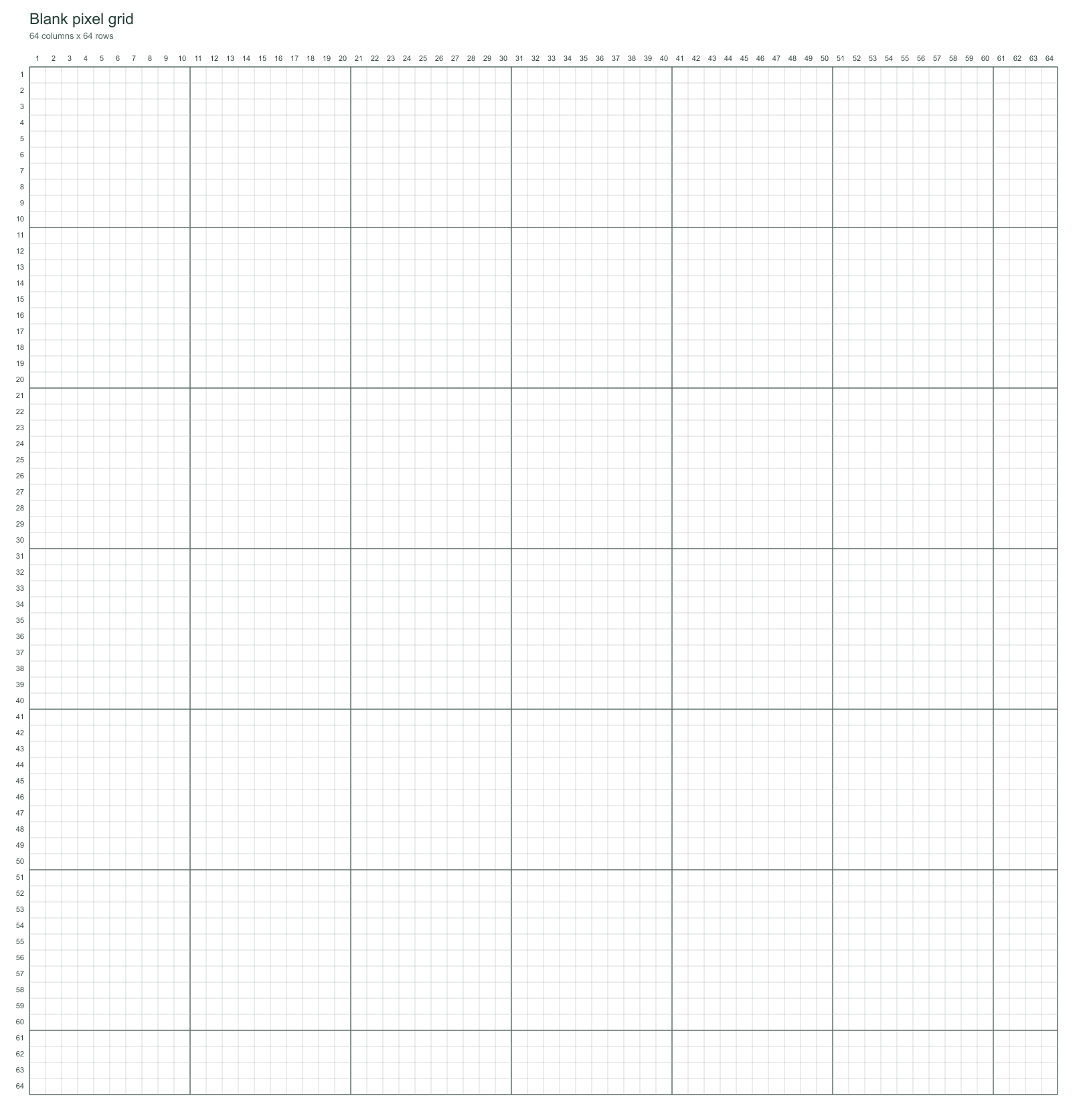
Customize this grid 64 × 64
4,096 cells. Check that printed squares are large enough for your activity.
Customize this gridUpload a picture, open an example or switch to a blank grid.
Set the grid size and color count. Zoom in on the outline and small details.
Download a chart, save a printable PDF or keep the image alone for editing.
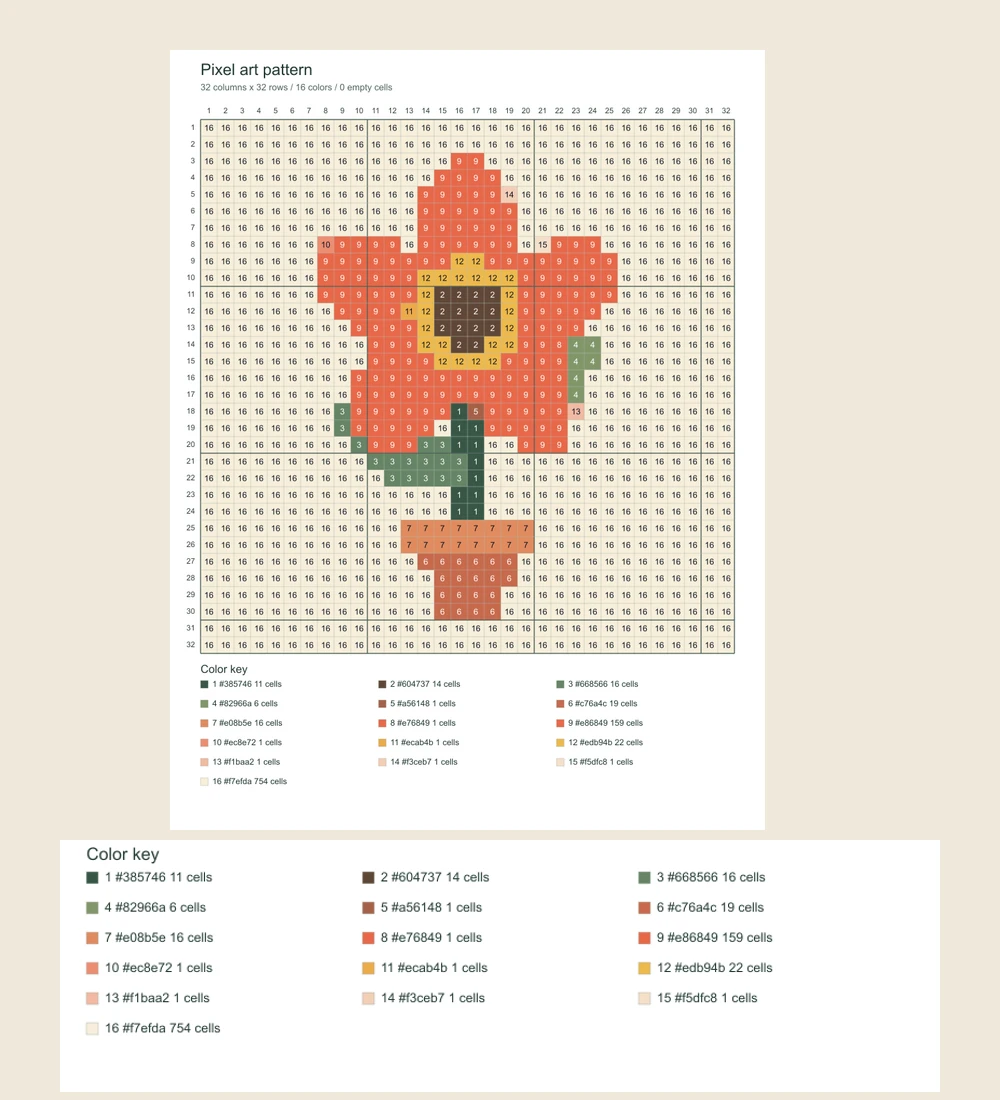
Your pixel art grid travels with its color key: numbered swatches, HEX values and cell counts. Pick the file for what you want to do next.
Follow our pixel art tutorial to draw a mushroom, export the PNG, and use this tool to make a numbered reference. For named blocks, use the Minecraft pixel art generator.
A few details to help you choose the right starting image and use the result.
The numbers belong to this chart’s digital color key. This general grid does not match Perler beads or DMC thread. For DMC thread matching and Aida sizes, use the cross stitch pattern maker. For named Minecraft blocks and exact material counts, use our Minecraft pixel art generator. Open the Minecraft pixel art generator.
Yes. Cells below 50% opacity become empty and are excluded from color counts. Partly transparent visible colors are flattened onto white. Empty cells remain transparent in the image-only PNG and appear as empty positions on the reference chart.
PDFs are single-page charts. A dense pixel art grid can be easier to follow on screen than on paper. If color numbers would be too small, turn them off, choose fewer cells, or download the PNG and zoom in. The PDF will not silently shrink numbered cells below a readable size.
This tool prepares grids and patterns; it does not include a drawing editor. Download the image-only PNG, make detailed changes in your usual editor, then bring the revised image back if you need another chart.
It does not detect or repair an uneven hidden grid. Original-size mode maps one source pixel to one cell for images up to 128 pixels on each side. Original colors supports up to 32 colors; larger palettes need reduction. Inspect screenshots and pixel-like images before downloading.