
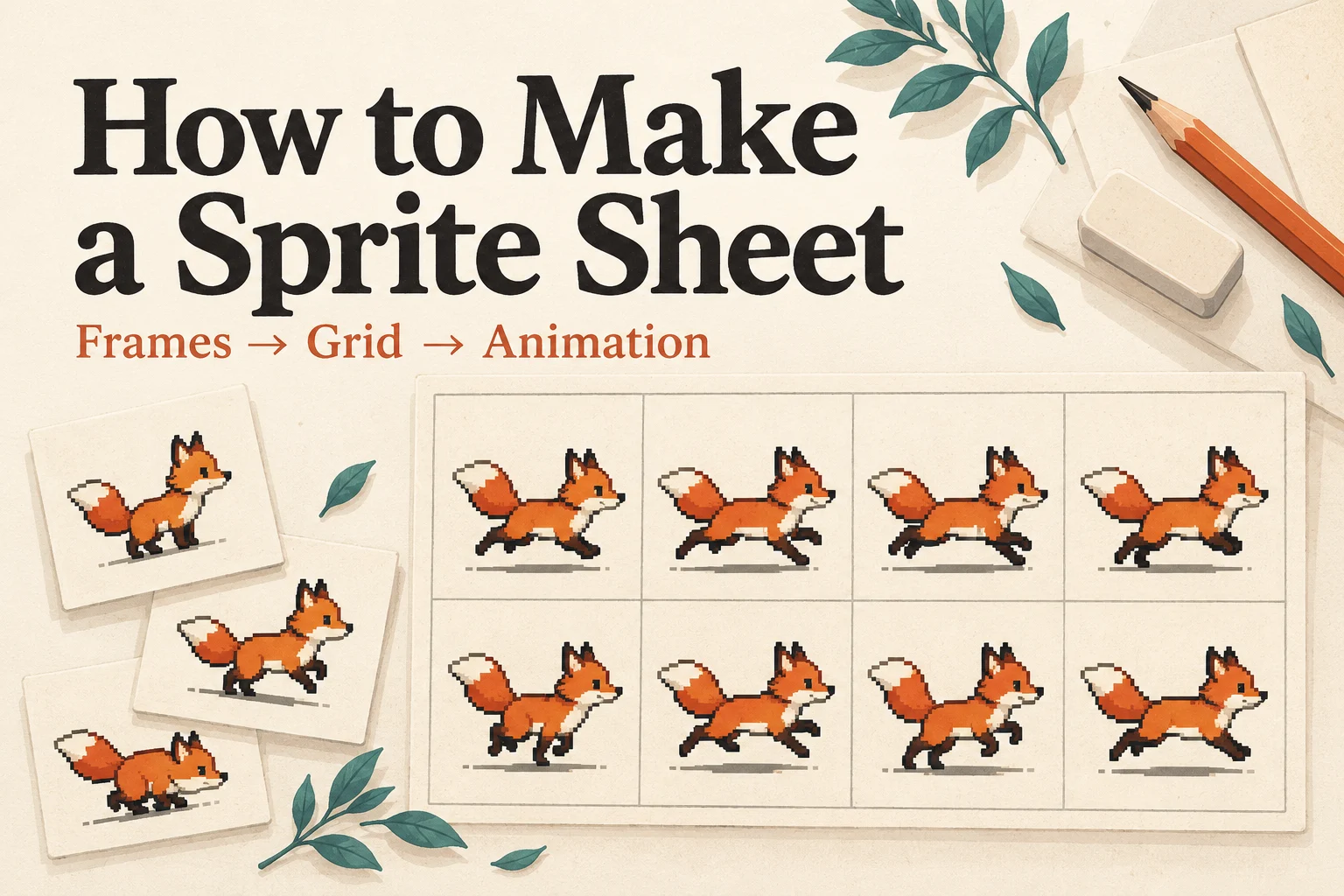
How to Make a Sprite Sheet from Animation Frames
Learn how to make a sprite sheet from PNG frames, choose a grid, keep transparency, and check the animation. Includes a worked example and GIF or video options.
To make a sprite sheet, put your animation frames on equal-sized transparent canvases, arrange them in playback order, and export the grid as a PNG. Then reopen that PNG with the same cell dimensions and play it once. That last check catches incorrect slicing before the sheet reaches your game.
This guide shows how to make a sprite sheet from separate PNGs, using two walking poses as a small, repeatable example. You will finish with a 160 × 110 sheet containing two 80 × 110 frames, plus a preview you can inspect. If your animation is already a GIF or video, you can skip the manual packing step.
Start with the material you already have
| Your starting point | The next step |
|---|---|
| Separate PNG frames | Prepare equal canvases, then pack them into a grid. |
| An animation in Aseprite | Export a sheet directly from the animation file. |
| An animated GIF | Extract and pack the existing frames with GIF to Sprite Sheet. |
| An MP4 or WebM clip | Choose a short range in Video to Sprite Sheet. |
| A character idea without animation frames | Draw the poses or generate an animation before packing. |
A sprite sheet stores pictures; it does not create the missing poses between them. If you need that artwork first, SpriteFuse's sprite sheet generator offers an AI generation workflow with free credits for new accounts. Sign in to use them. It is a different starting point from arranging existing PNG files.
For the worked example, download Kenney's Platformer Characters and find the Adventurer pose folder. Use adventurer_walk1.png and adventurer_walk2.png. Kenney distributes this pack under CC0, so you can also use the artwork in a project.
1. Give every frame the same canvas
Open the two walking images and check their dimensions. Both example files are 80 pixels wide and 110 pixels high. Keep those dimensions when packing them: each image already defines one complete animation cell.
For your own artwork, choose a canvas large enough for the widest and tallest pose. Keep the character aligned to a consistent reference, such as the feet touching the same baseline. A sword swing may need empty space beside the character; that transparent space still belongs to the cell.
Do not stretch each pose separately to fill its box. A narrow standing pose and a wide running pose should retain the same character scale. If you crop every frame tightly around its visible pixels, you also need offsets to reconstruct its position during playback. Equal canvases avoid that extra work for a simple grid animation.
Name longer sequences in order: walk_001.png, walk_002.png, and so on. Zero padding keeps ordinary filename sorting from placing frame 10 between frames 1 and 2. After uploading, inspect the order anyway; filenames help arrange the sequence, but the visible poses confirm it.
2. Choose the grid before exporting
A horizontal strip is a grid with one row. It is easy to inspect for a short loop, while multiple rows keep a larger sequence from becoming extremely wide. Choose the layout your destination can slice, then record both the frame size and the column count.
For example, eight 64 × 64 frames arranged in four columns need two rows. With no spacing or outer border, the sheet is 256 × 128 pixels: four frame widths across and two frame heights down. Read the sequence left to right, then continue on the next row.
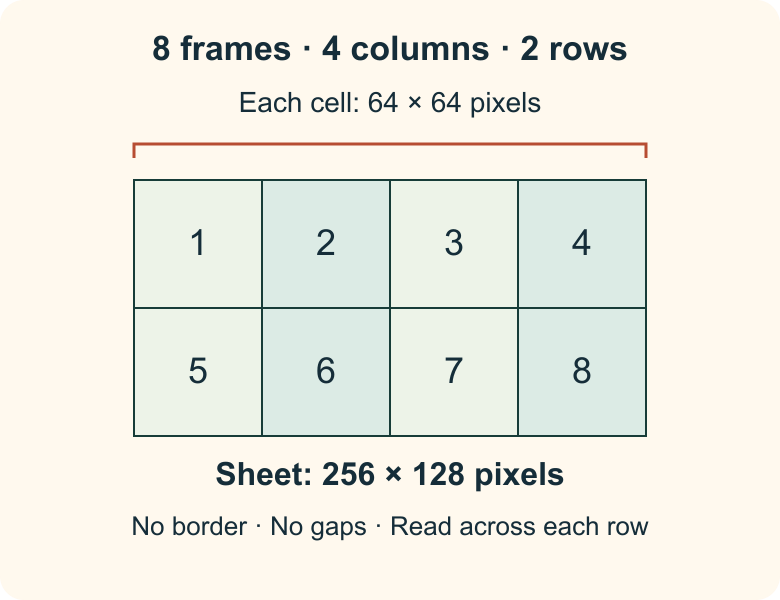
Extra transparent space changes those dimensions. Distinguish the outer border from gaps between cells. With a 2-pixel border on every side and 2-pixel gaps, the same example becomes 266 × 134 pixels. The frames remain 64 × 64; only their positions and the total image size change.
Tools use “padding” differently, so inspect the exported dimensions rather than transferring that setting blindly between applications. For the two-frame walkthrough below, use zero padding. Its expected result is simply 160 × 110 pixels.
A tightly packed texture atlas is another option. It can trim transparent areas and place differently sized images together, but the importer then needs the corresponding layout data. CodeAndWeb's sprite sheet guide explains the grid and atlas distinction. Start with equal cells when you want straightforward manual slicing.
3. Pack the PNG frames
Open Final Parsec's Sprite Sheet Maker and upload the two Adventurer walking PNGs. Select Grid, set the column count to 2, and leave padding at 0. Keep the background transparent.
The workspace sorts images by filename from left to right, then top to bottom. Check that the first walking pose is on the left and the second is on the right. You can drag sprites to correct their order. Zoom changes how large the workspace looks; it does not need to change your exported frame dimensions.
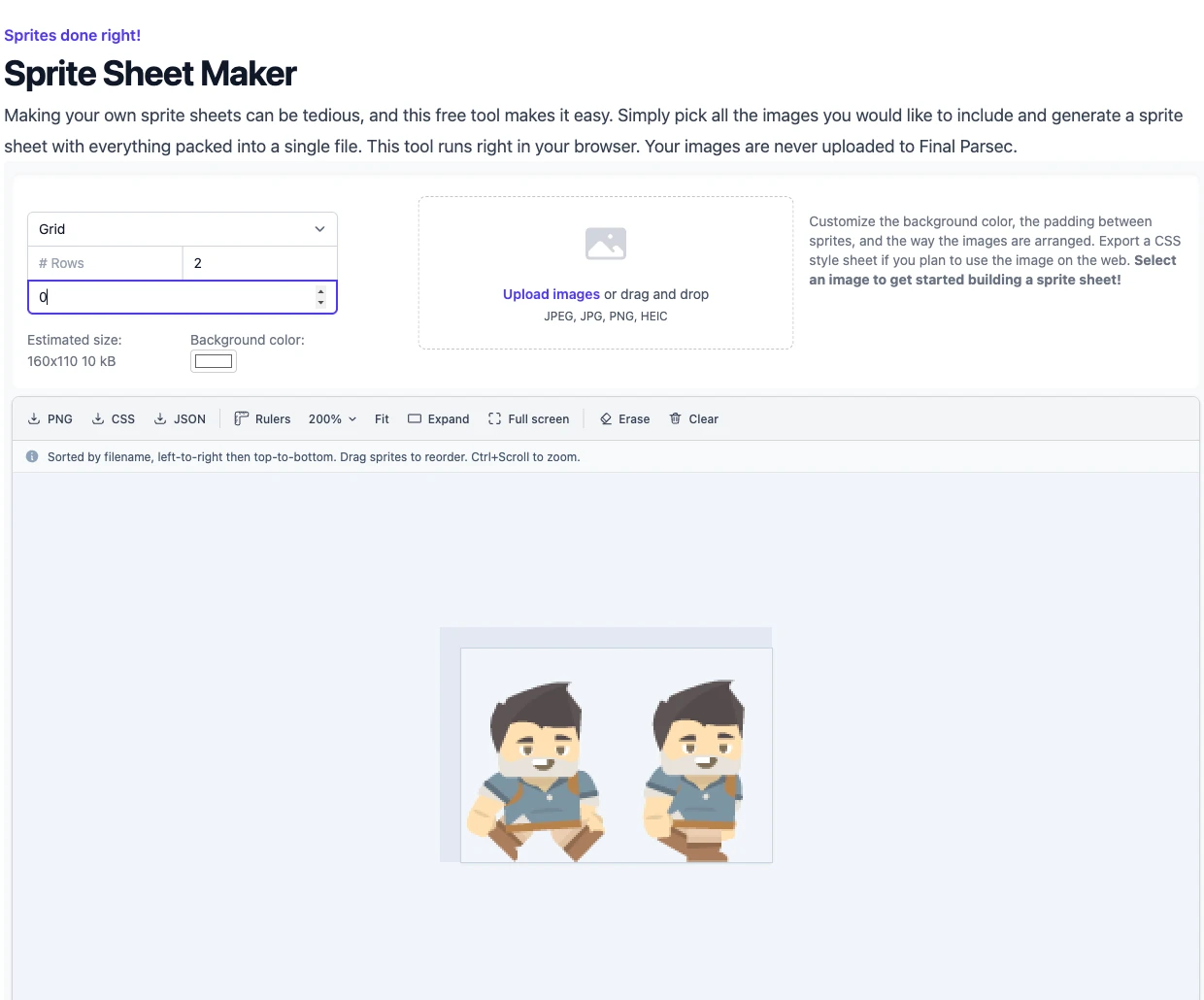
Download PNG. In this example, the exported image measures 160 × 110 pixels, with each original pose occupying an 80 × 110 cell. Download JSON as well if you want a record of the layout: the first cell starts at x = 0, y = 0; the second starts at x = 80, y = 0.
If you are already animating in Aseprite, you can avoid exporting and re-uploading separate PNGs. Use File → Export Sprite Sheet and select a horizontal, vertical, or matrix layout, as described in the official Aseprite documentation. Keep the editable animation file so you can revise a pose and export again later.
4. Keep the image, layout and timing together
The PNG contains the pixels. A layout file describes where the frames are. Playback timing tells your animation system how long to display each frame. These are separate pieces of information, even when a tool exports some of them together.
The Final Parsec JSON in this example records positions and sizes, but it does not set the walking speed. We will use 4 FPS, which displays each pose for 250 milliseconds. At 8 FPS, the intended duration would be 125 milliseconds per frame. Choose the speed by watching the motion, not by changing the grid dimensions.
A regular-grid importer may only ask for frame width, frame height and count. Another importer may require its own JSON format; an arbitrary JSON download is not automatically compatible. Keep a small note beside the PNG: “80 × 110 cells, 2 columns, 1 row, 2 frames, no border or spacing, 4 FPS.” That is enough to reconstruct this example manually.
Keep the original transparent PNG as your working sheet. A GIF preview is useful for sharing motion, but its limited palette and transparency can change the appearance of an image.
5. Reopen the sheet and check the animation
Open Sprite Sheet to GIF and upload the exported PNG. Under Columns & rows, enter 2 columns and 1 row. Keep border and spacing at zero, select frames 1–2, and choose 4 FPS with continuous looping.
The tool should detect two cells measuring 80 × 110 pixels each. Play the preview and watch a few loops. The character should alternate between the original poses without a slice of its neighbor appearing at either edge.
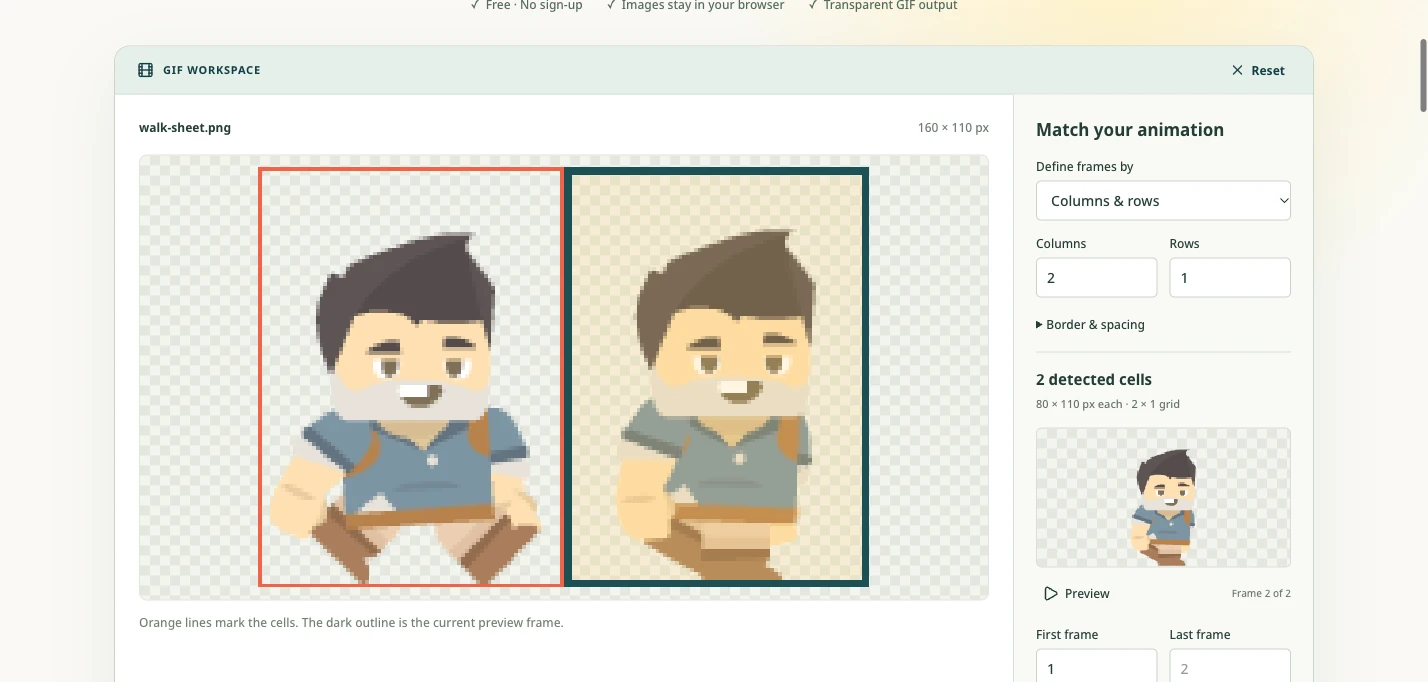
If the character jumps sideways, compare its position within the original canvases. If part of another pose appears, check the grid, outer border and spacing first. If the sequence feels backward, correct the frame order. A two-pose walk will remain a two-pose walk; slowing it down cannot supply additional in-between drawings.
Create and download the GIF when the loop looks right. You can compare the example PNG sheet with the 4 FPS GIF preview. To inspect individual cells instead, use the sprite sheet cutter with the same grid settings.
Already have a GIF or video?
For an animated GIF, open GIF to Sprite Sheet, choose the file, and leave the grid on Auto unless you need a specific row length. Convert it, then download the PNG and timing JSON. No account is required; the GIF is handled temporarily to produce the conversion response.
Converting the example preview back to a sheet produced two 80 × 110 frames in a 160 × 110 PNG. Its JSON records 250 milliseconds for each frame, preserving the preview's timing. The conversion packs the GIF's existing images; it does not recover colors that GIF encoding discarded.
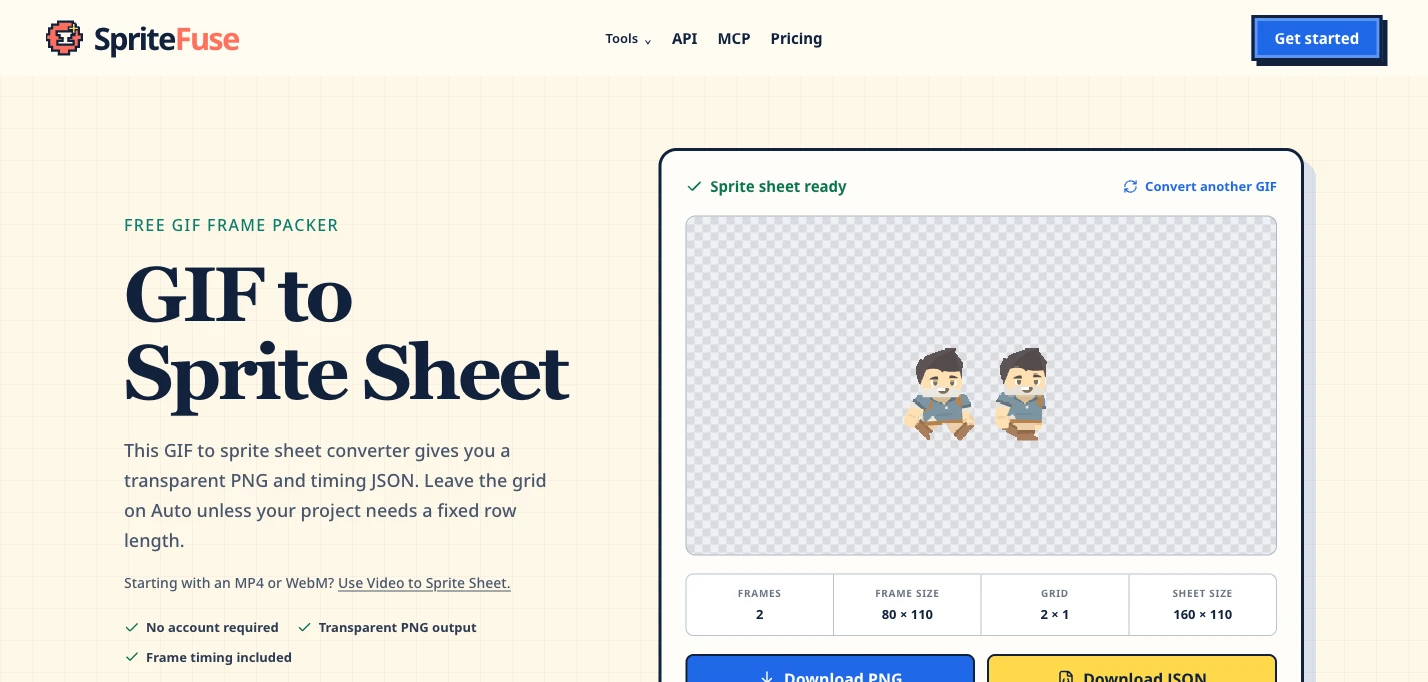
For an MP4 or WebM, use Video to Sprite Sheet. Select the action's start and end, choose how many frames to sample, and inspect the resulting sequence before exporting. Processing stays in your browser. The current limits are 50 MB, a selected range up to 10 seconds, and up to 100 sampled frames.
Video sampling is useful when you need representative poses from a clip. It does not guarantee every original video frame, and it retains the background. A clip with a moving camera will also carry that movement into the extracted frames, so choose a stable source when you want a stationary character animation.
Questions before you export
Can I make a sprite sheet for free?
Yes. The Final Parsec packing walkthrough and SpriteFuse's GIF, video, cutter and GIF-preview tools do not require a paid generation workflow. You still need artwork you have permission to use. Drawing or AI-generating new animation frames is a separate step with its own tools and terms.
Does the sheet have to be square?
No. The worked example is rectangular. Use the dimensions and texture limits required by your target engine or platform. A power-of-two texture may be useful for a particular pipeline, but it is not a universal requirement for arranging animation frames.
Take the checked sheet into your project
Keep the PNG, the layout information and the chosen playback speed together. Import or slice the image using those values, then verify the loop once more in its final context. If your destination is GameMaker, continue with the separate GameMaker sprite sheet formatting guide.
Start with two or three frames while you learn the settings. Once that small loop slices and plays correctly, pack the complete sequence using the same canvas, ordering and timing decisions.
Author

Categories
More Posts
8 Free Fuse Bead Patterns with Printable PNG & PDF Charts
Find 8 easy fuse bead patterns with numbered PNG charts, A4 and Letter PDFs, exact color counts, and helpful tips for making each design on a square board.
How to Format Sprite Sheets for GameMaker
Format sprite sheets for GameMaker: prepare PNG frames, import a strip or grid, set animation speed and origin, and play the downloadable example project.

Normal Mapping for 2D Animation: A Godot Walkthrough
Generate normal maps for animated sprites, keep color and normal frames aligned, and add moving lights in Godot 4.7.2 with a downloadable example.